How to Fix Audio Problems in Microsoft Teams on a Computer.If your microphone or headset isn’t working in Microsoft Teams, don’t panic—most audio issues on Windows PCs, Macs, and Chromebooks can be solved with a few quick checks. Whether people can’t hear you during a call or you’re not getting any sound at all, this guide walks you through simple troubleshooting steps to diagnose and fix the problem efficiently.
Fixing Microphone Problems
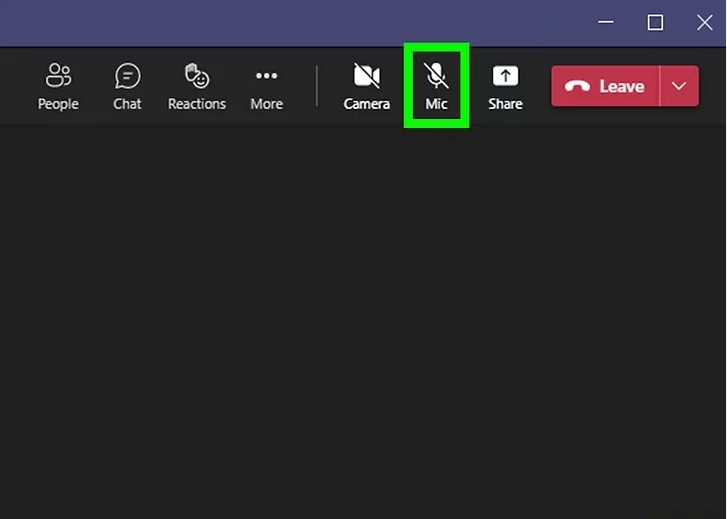
### 1. Check if Your Microphone Is Muted
Look at the microphone icon at the top of your Teams call.
If there’s a line through the icon, your microphone is muted—click it to unmute.
🔗 More about Teams call controls:
https://support.microsoft.com/en-us/teams-controls
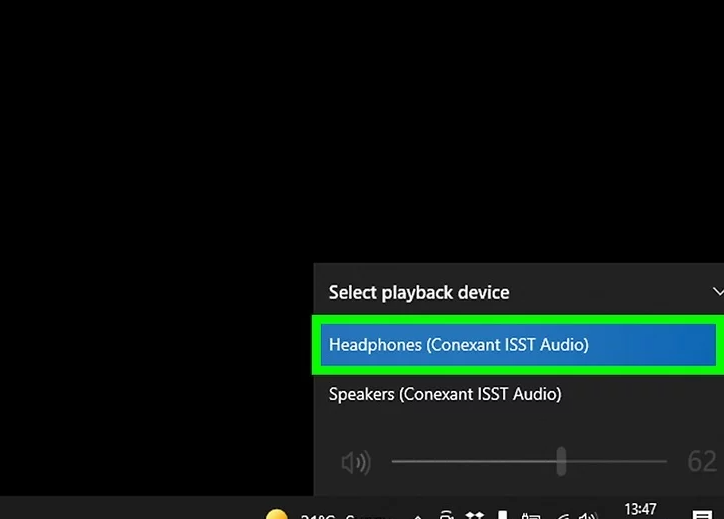
### 2. Make Sure Your Microphone or Headset Is Properly Connected
If you’re using an external microphone or a headset, verify that it’s fully plugged in.
Check for:
- Loose 3.5mm or USB connections
- Headsets with physical mute switches
- Bluetooth devices that may need to be re-paired
🔗 How to reconnect Bluetooth devices:
https://www.howtogeek.com/how-to-repair-bluetooth
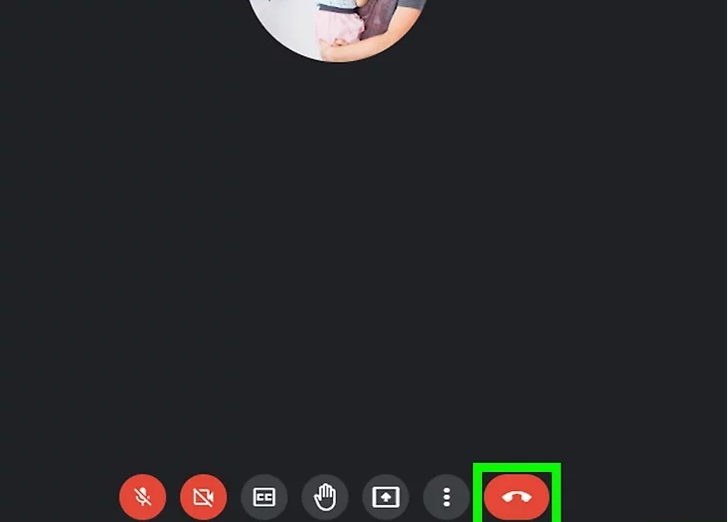
### 3. Close Other Programs That May Be Using Your Microphone
Applications such as Skype, FaceTime, Google Meet, or browser tabs that access your mic can block Teams.
Close all other communication apps before joining a call.
🔗 See how browsers manage microphone access:
https://www.avast.com/c-browser-microphone-settings
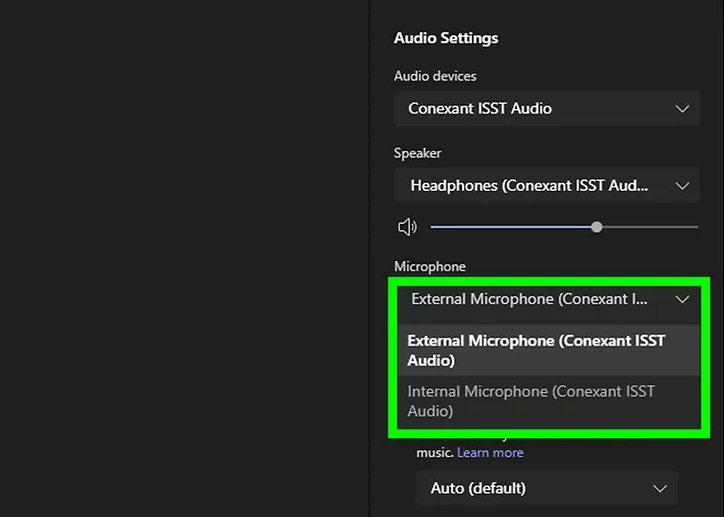
### 4. Verify Teams Is Using the Correct Microphone
Sometimes Teams selects the wrong input device.
How to Check:
- Click the three dots (•••) at the top of a call.
- On Windows 11: choose Device settings.
- On other platforms: choose Settings → Devices.
- Select the correct Audio device and Microphone.
Keep the settings panel open for the next step.
🔗 Teams device settings explained:
https://learn.microsoft.com/en-us/microsoftteams/device-settings
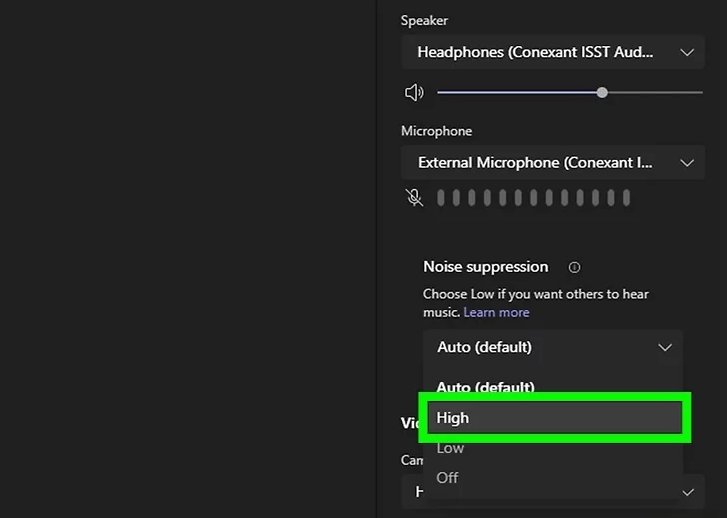
### 5. Adjust Noise Suppression
Noise Suppression impacts your audio clarity.
Options:
- Auto – Recommended for most situations
- High – Best for eliminating background noise
- Low – Best for music or soft background audio
- Off – Use in very quiet environments
🔗 Noise suppression details:
https://www.microsoft.com/teams-noise-suppression
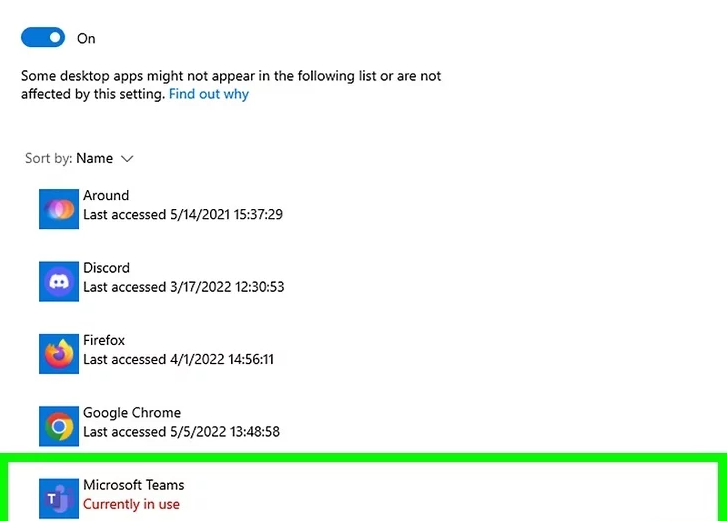
### 6. Check Microphone Permissions
Teams needs permission to access your mic. Instructions differ by device.
Windows
- Open Settings > Privacy & Security > Microphone
- Enable microphone access for Teams
macOS
- Go to System Settings > Privacy & Security > Microphone
- Ensure Teams is checked
Browser / Chromebook
- Open Settings > Privacy and security > Site Settings
- Choose Microphone
- Allow access for teams.microsoft.com
🔗 Manage mic permissions browser guide:
https://www.digitaltrends.com/computing/how-to-change-microphone-permissions
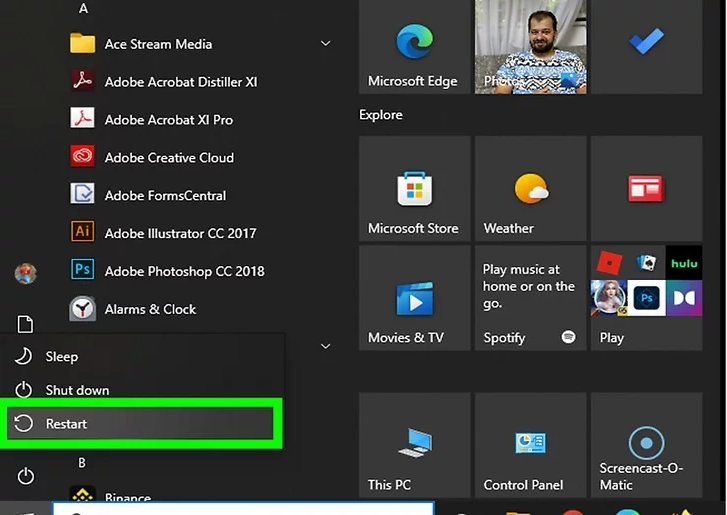
### 7. Restart Your Computer
A simple restart often resolves audio or permission-related issues.
🔗 Why restarting fixes problems:
https://www.computerworld.com/article/restart-benefits
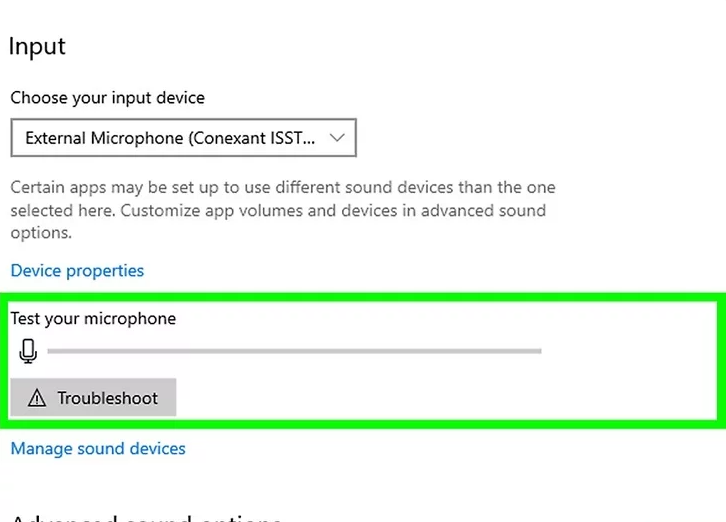
### 8. Test Your Microphone at the System Level
If the mic doesn’t work outside Teams, the issue is system-wide.
Windows
Settings → System → Sound → Input device → Speak and check the volume bar.
macOS
Apple menu → System Settings → Sound → Input → Speak and check the bars.
🔗 System mic testing tutorials:
https://www.howtogeek.com/how-to-test-microphone
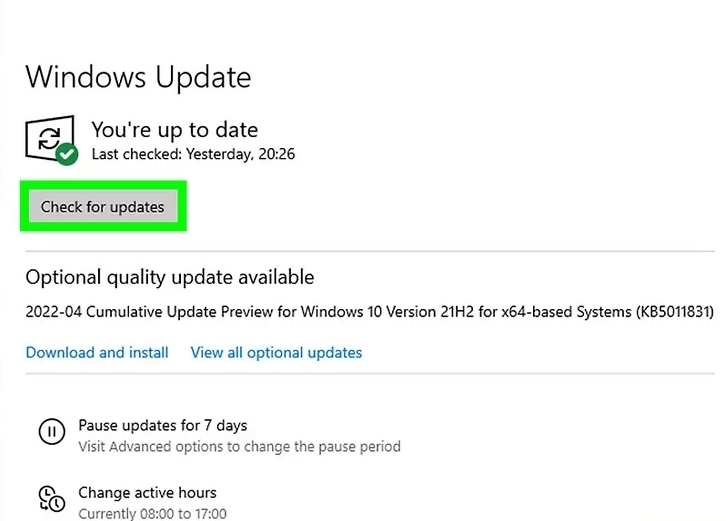
### 9. Update Your Operating System and Drivers
Outdated drivers cause many microphone issues.
- Windows/macOS: Run full system updates
- Chromebook: Settings → About ChromeOS → Check for updates
- External microphones: Visit manufacturer websites for driver software
🔗 How to update audio drivers:
https://www.intel.com/support/drivers-audio
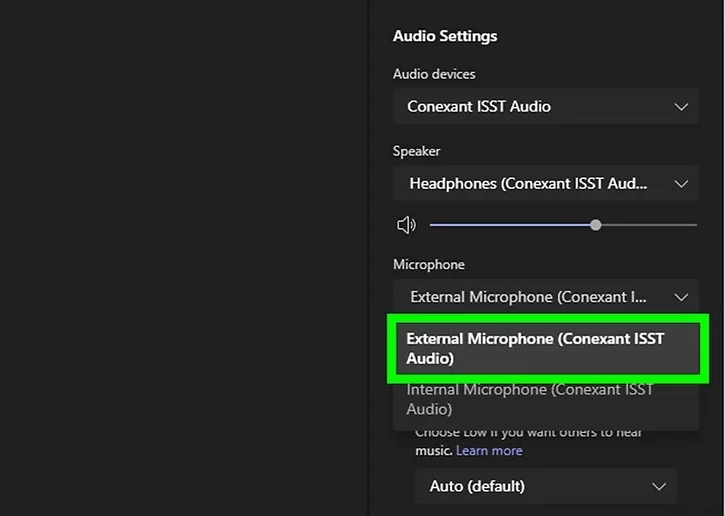
### 10. Try a Different Microphone
If none of the above steps work, the issue may be with your current mic.
Switch to:
- Your laptop’s built-in microphone
- A USB microphone
- A different headset
🔗 Troubleshooting faulty audio hardware:
https://www.lifewire.com/fix-microphone-not-working-5184317
(References)
- Microsoft Teams Device Settings Documentation
- Windows Microphone Privacy Settings Guide
- Microsoft Support – Fixing Teams Audio Issues
- Apple Support – Manage Microphone Access
- Google Support – Chromebook Audio Troubleshooting
Fixing No Sound
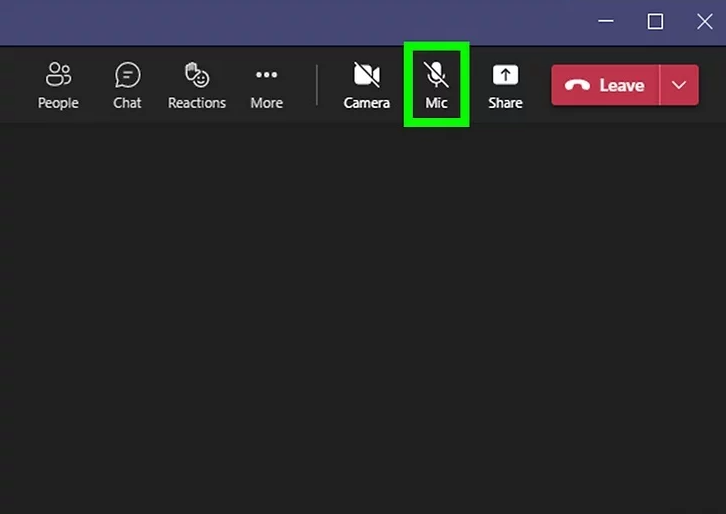
### 1. Make Sure the Other People on the Call Aren’t Muted
Sometimes the issue isn’t on your side.
Ask the other person on the call to check whether their microphone icon has a line through it. If so, they just need to click it to unmute.
🔗 How to unmute in Teams:
https://support.microsoft.com/en-us/teams-mute
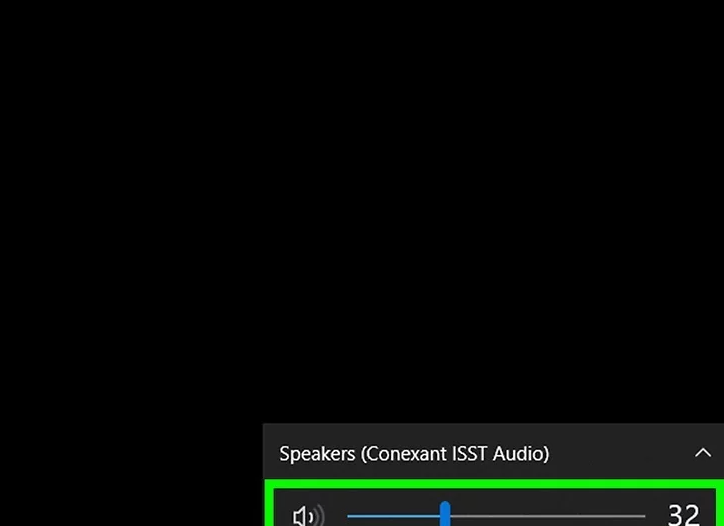
### 2. Check the Volume and Power of Your Speakers or Headphones
If you can’t hear anything, your speakers or headphones might be the problem.
What to check:
- Ensure they are connected properly
- Verify they are not muted
- Confirm the volume is turned up
- Reconnect Bluetooth headphones
- Charge wireless headphones
- Test them on another device (phone/tablet)
🔗 Troubleshooting Bluetooth audio:
https://www.howtogeek.com/bluetooth-audio-fix
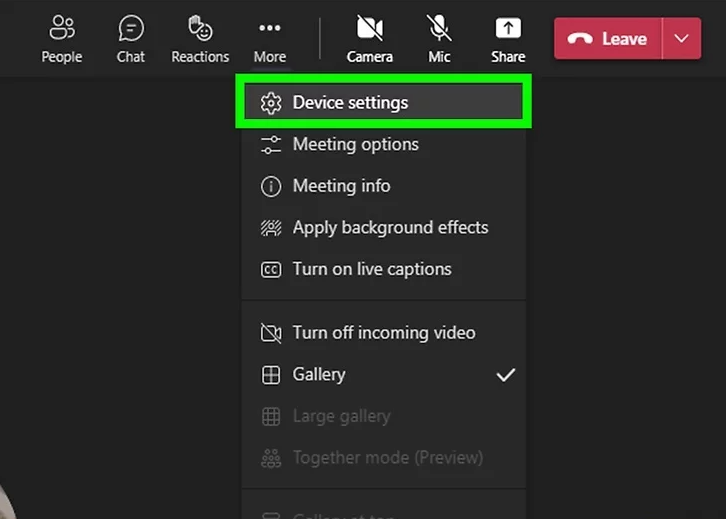
### 3. Open Your Audio Device Settings in Microsoft Teams
Ways to access settings vary by platform:
Windows 10 / macOS
- Click the three horizontal dots (•••) at the top of Teams
- Select Settings → Devices
Windows 11
While on a call:
- Click the three dots
- Select Device Settings
🔗 Teams device configuration:
https://learn.microsoft.com/en-us/microsoftteams/device-settings
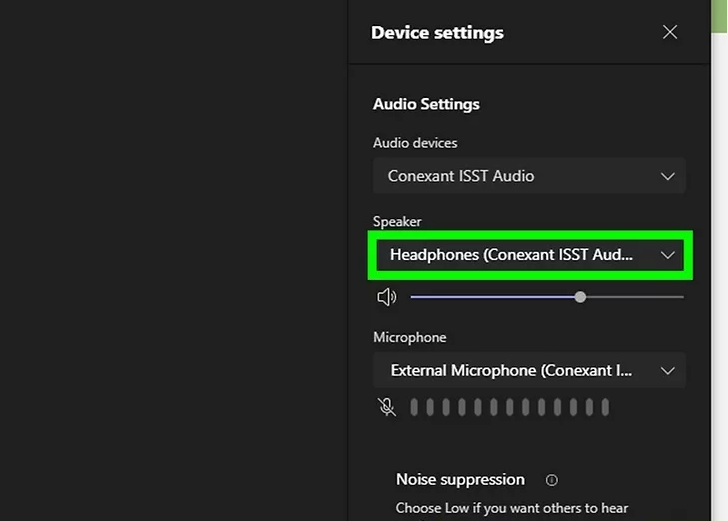
### 4. Select the Correct Speaker, Microphone, and Camera
Choose which device Teams should use. Examples:
- PC Mic and Speakers = Built-in audio
- Headset name = Use your external headphones
- On macOS: Click the speaker icon in the menu bar to confirm output device
🔗 Managing Mac audio devices:
https://support.apple.com/guide/mac-help/change-sound-output
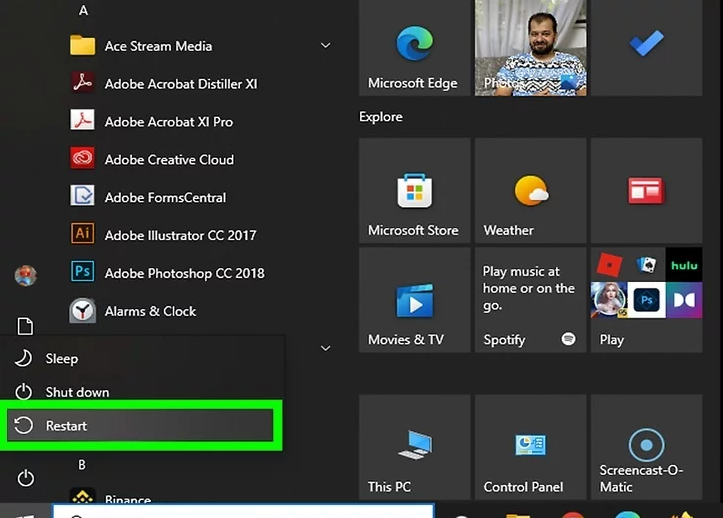
### 5. Restart Your Computer
Rebooting Windows, macOS, or ChromeOS often clears temporary audio conflicts in Teams.
🔗 Why restarts fix audio issues:
https://www.computerworld.com/article/restart-benefits
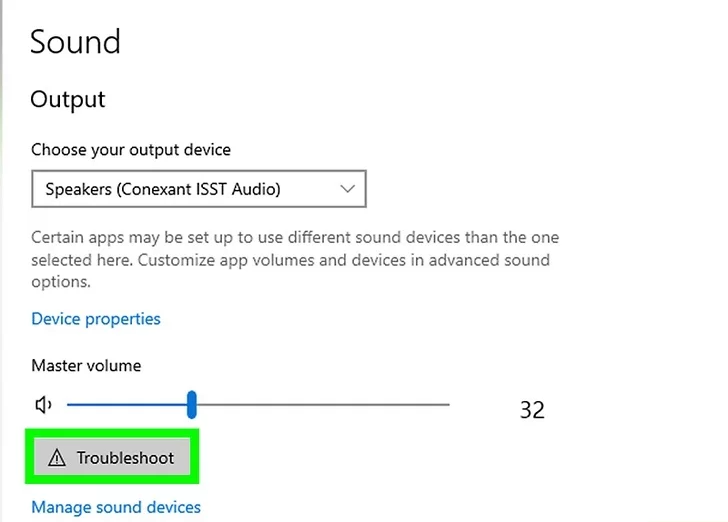
### 6. Test Your Audio in Other Apps
If you still can’t hear anything:
- The issue may not be Teams
- Test audio in YouTube, local videos, or system sounds
- On Windows: Run the Audio Troubleshooter
- On macOS: Test speakers via System Settings → Sound
🔗 Windows audio troubleshooter:
https://support.microsoft.com/windows/fix-sound-problems
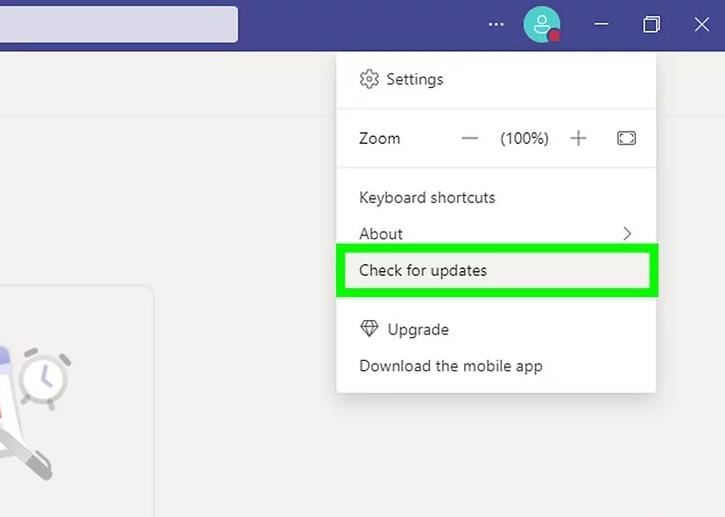
### 7. Check for a Teams Update
- Click your profile picture in Teams
- Select Check for updates
- Install if available
Updates often resolve audio glitches.
🔗 Updating Microsoft Teams:
https://support.microsoft.com/teams-update
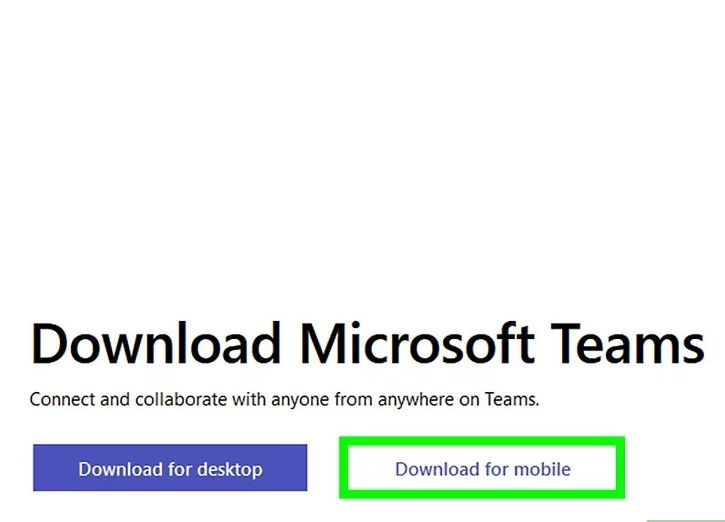
### 8. Switch to a Different Version of Teams
If you are using:
- Web version → Try the desktop app
- Desktop app → Try Teams web version
- Chromebook → Install the Android app if possible
Different builds may avoid the glitch.
🔗 Teams download page:
https://www.microsoft.com/microsoft-teams/download-app
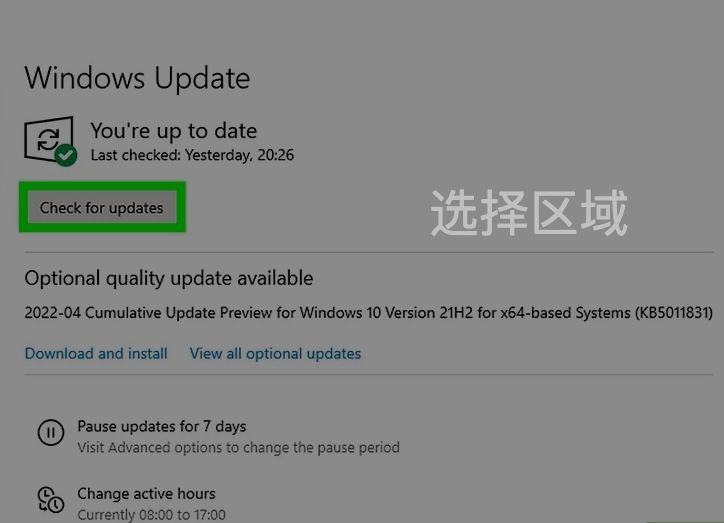
### 9. Run Updates on Your Computer
If you have no audio at all, updating the OS or drivers may fix it.
Windows/macOS
- Run full system updates
- Check manufacturer sites for headset/speaker drivers
Chromebook
Settings → About ChromeOS → Check for updates
If you manually installed drivers, update them again.
In rare cases, your audio card may be failing.
🔗 Audio driver troubleshooting:
https://www.intel.com/support/drivers-audio
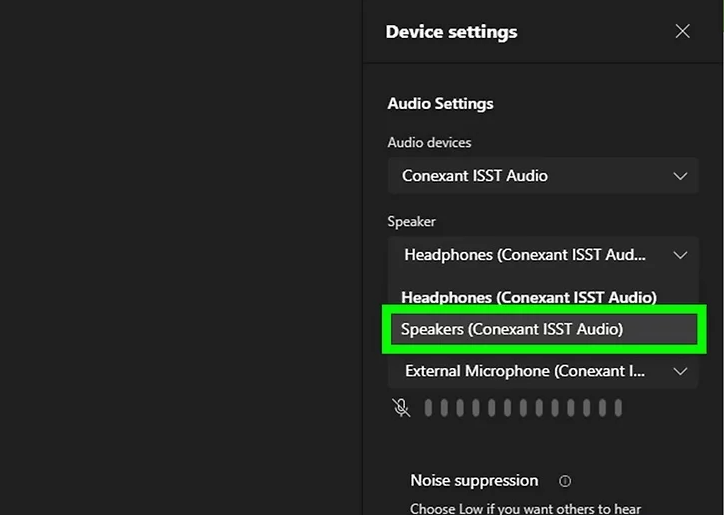
### 10. Try Different Speakers or Headphones
If none of your current devices work:
- Switch to your laptop’s built-in speakers
- Use a different headset
- Try wired headphones instead of Bluetooth
This will confirm whether the issue is hardware-related.
🔗 Fixing faulty audio hardware:
https://www.lifewire.com/fix-microphone-not-working-5184317
(References)
- Microsoft Teams Audio Configuration Guide
- Microsoft Support – Fix Teams Audio Problems
- Apple Support – Sound Output Troubleshooting
- Google Support – Chromebook Audio Issues
- Intel – Audio Driver Update Documentation
Try Different Speakers or Headphones