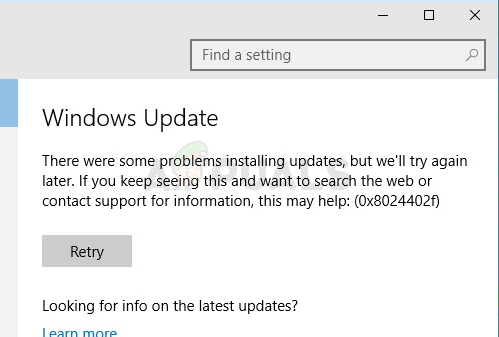
Windows 8 users often face a frustrating issue where updates fail during installation, leading to the error message “Failure configuring Windows updates. Reverting changes. Do not turn off your computer.” This issue typically occurs during or after a restart, where the system tries to undo the failed updates but gets stuck in a loop. Here’s how to fix this problem and ensure that updates are properly installed.
What Causes the Error?
This error usually happens when Windows is unable to properly install updates, often due to corruption in the update process or issues with system files. In most cases, the transaction manager in the NTFS file system is unable to complete the update, causing the system to revert to its previous state. Fortunately, there are several ways to resolve this issue and restore the ability to install updates.
Step 1: Get Your Computer Out of the “Reverting Changes” Loop
Before you can apply a fix for the “Failure configuring Windows updates” error, you need to break out of the loop. Here are two possible approaches:
Option 1: Wait it Out
Sometimes, the system will eventually finish rolling back the updates and restore access to your computer. This process can take anywhere from one hour to several hours depending on your system’s speed. If you’re patient, this might be the simplest solution.
Option 2: Perform a Factory Reset
If waiting isn’t an option or the process takes too long, performing a factory reset may help. Important: This will only work if your computer originally came with Windows 8. Here’s how to reset your system:
- Turn off your computer.
- Power it on and press the appropriate key to access the BIOS (usually F1, F2, or Delete, depending on your device).
- Once in the BIOS, navigate to the Recovery Partition option.
- Follow the on-screen instructions to reset your system.
This will revert your system to its factory settings, but ensure the Recovery Partition is intact to avoid issues. For detailed instructions, refer to How to Reset Windows 8.
Step 2: Fix the “Failure Configuring Windows Updates” Error
Once your system is out of the loop, try one of the following methods to fix the update issue:
Method 1: Use the Windows Update Diagnostic Tool
- Go to Windows Update Troubleshooter and click Run now to download the utility.
- Install and run the utility, then follow the instructions on-screen.
- If the tool detects issues, it will automatically fix them.
If the diagnostic tool resolves the problem, you should be able to download and install updates without issues.
Method 2: Break Updates into Smaller Batches
If the updates are too large, consider installing them in smaller batches to reduce the likelihood of failure:
- Go to Control Panel > Windows Update > Check for Updates.
- Select only a few updates at a time (5-6 updates) and install them.
- After each batch, restart your computer.
- Continue this process until all updates are installed.
This method has worked for many users who face issues with large batches of updates.
Method 3: Disable Secure Boot
Sometimes, the problem stems from Secure Boot settings, particularly in computers with UEFI chips. Follow these steps to disable Secure Boot and allow updates to install:
- Turn off your computer.
- Power it on and press the key to access the BIOS (typically F1, F2, or Delete).
- Navigate to the Secure Boot or UEFI Boot option in the BIOS.
- Disable Secure Boot, then save and exit the BIOS.
- Go to Control Panel > Windows Update > Troubleshoot to scan for issues.
- Download and install all available updates.
Once updates are installed, re-enable Secure Boot for system security. For more information on Secure Boot and UEFI, check out Microsoft’s guide on UEFI.
Conclusion
If your Windows 8 computer is stuck on the “Failure Configuring Windows Updates” screen, don’t panic. Use the methods above to resolve the issue and get your updates installed correctly. If problems persist, consider reaching out to Microsoft Support for further assistance.
By following these steps, you’ll be able to fix the Windows Update error and keep your system up-to-date.