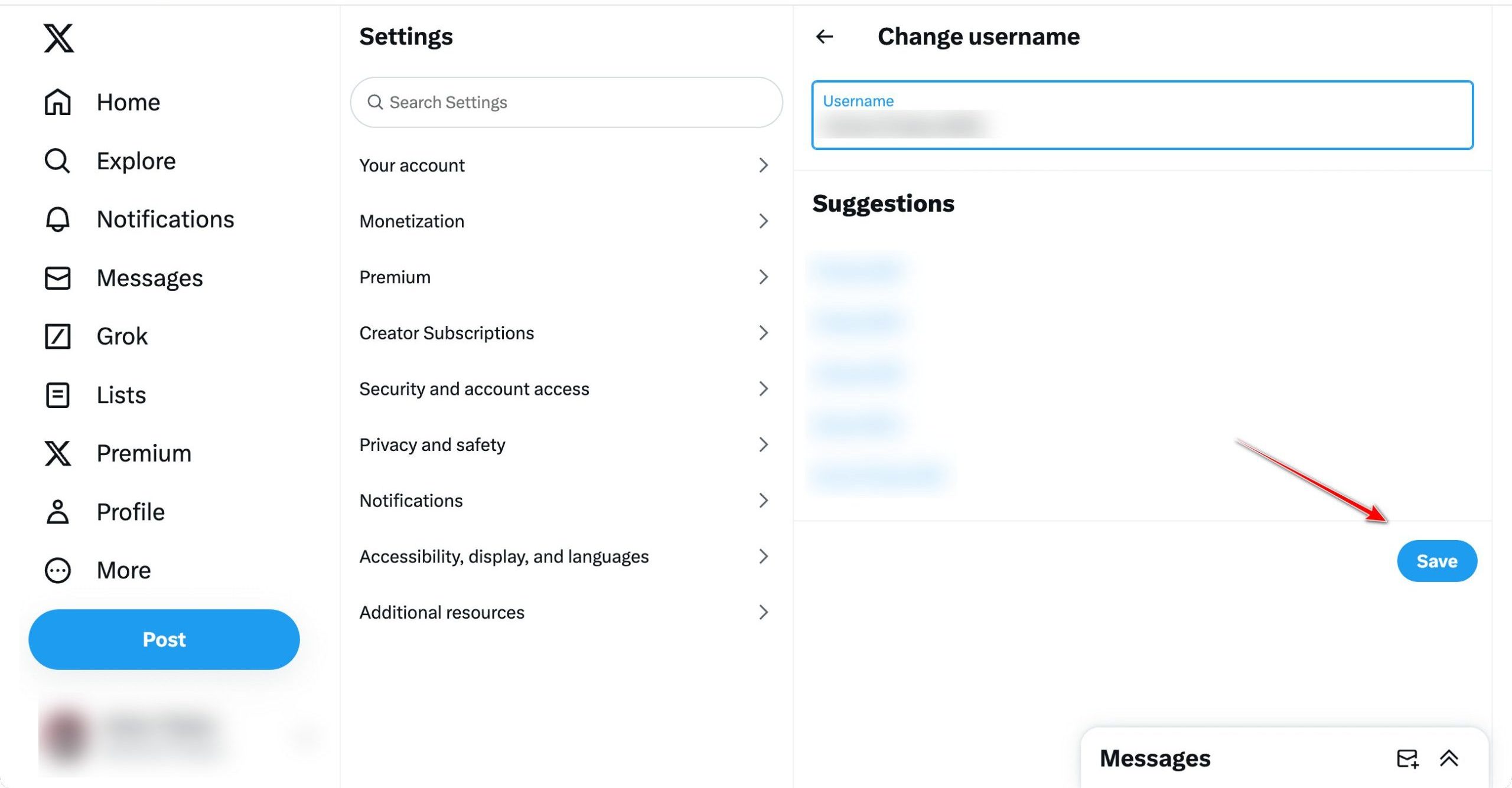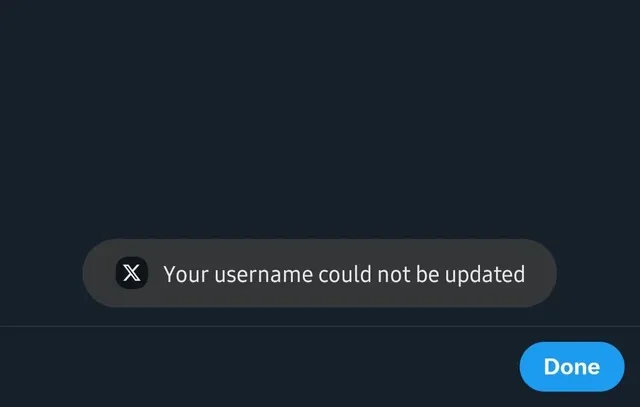
How to Fix “Your Username Could Not Be Changed” on X (Twitter) starts with understanding why the error appears. This message shows up when you try to update your X (formerly Twitter) username to a new one, even if it meets all platform requirements. In most cases, it means the system has rejected the request due to temporary technical limitations or account-level restrictions.

The most common underlying causes of the “Your Username Could Not Be Changed” error on X (Twitter) include:
- Previously used or suspended usernames that remain locked in X’s database, even if they appear available.
- Recent username changes, as X may temporarily restrict multiple handle updates within a short time frame to prevent abuse.
- Technical issues related to the app or browser you’re using, such as unsupported characters, cached data conflicts, outdated versions, or region-based limitations.
According to X’s official username policy, usernames must be unique and may remain unavailable after suspension or recent use, even if they are no longer visible on the platform. You can review these rules here:
👉 https://help.x.com/en/managing-your-account/change-x-username
In the guide below, we’ll break down each cause in detail and walk you through step-by-step solutions to help you bypass these restrictions and successfully complete your username change.
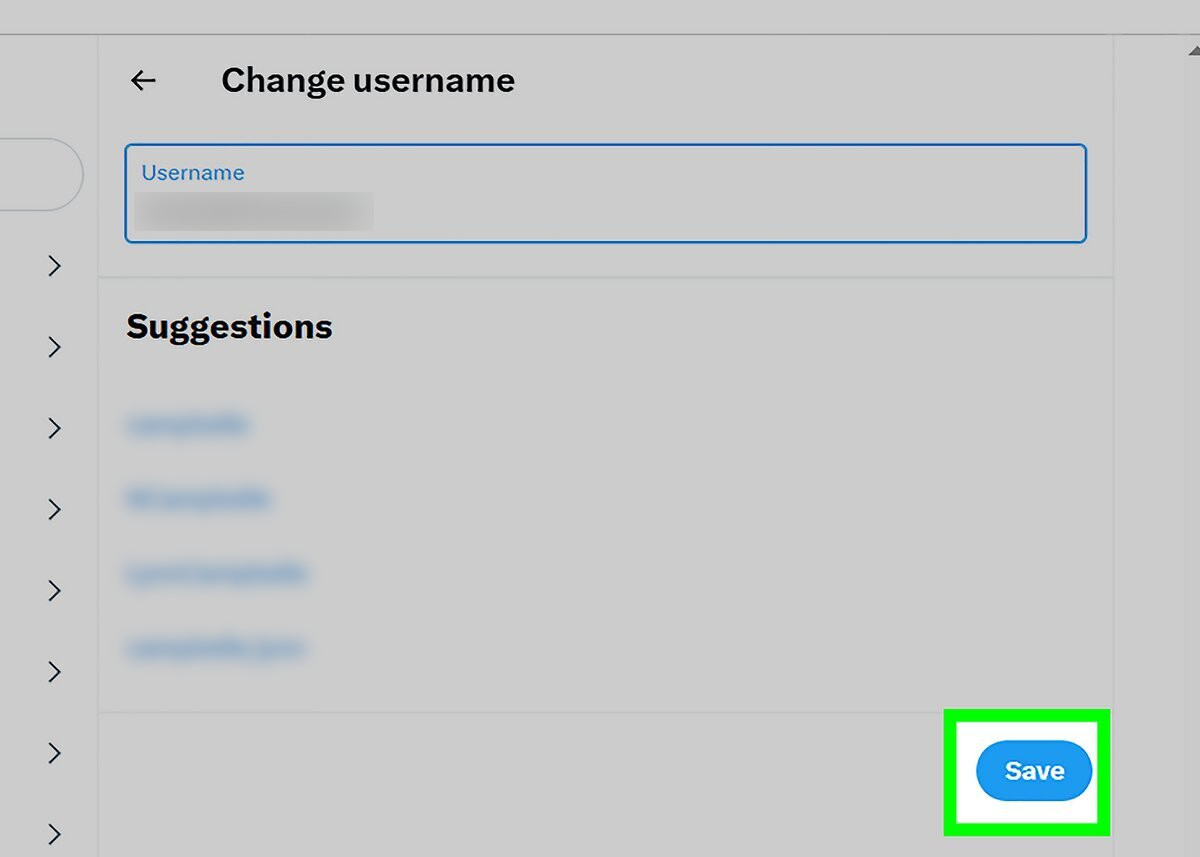
1. Spam-Click the “Save” Button
This issue can sometimes happen because of a temporary delay or a brief communication glitch between your account and X’s servers. Clicking the “Save” button multiple times forces repeated requests to the server. Once the connection stabilizes, one of those requests may be processed successfully, allowing the username to update.
- Click the Save button several times while attempting to change your username.
2. Wait Out the Rate Limit
If you’ve tried changing your username too many times within a short period, X’s rate limit can temporarily block further changes. Waiting for this cooldown period allows the system to reset and process your next request without error.
- Wait several hours (up to 24 hours) before attempting the change again.
3. Use VPN
If your IP address has been temporarily flagged after repeated attempts, connecting through a VPN can help. A new IP address can bypass temporary regional or network-based restrictions and allow the change to go through.
- Close the Twitter app or browser tab completely.
- Enable a VPN and connect to a different region or country.
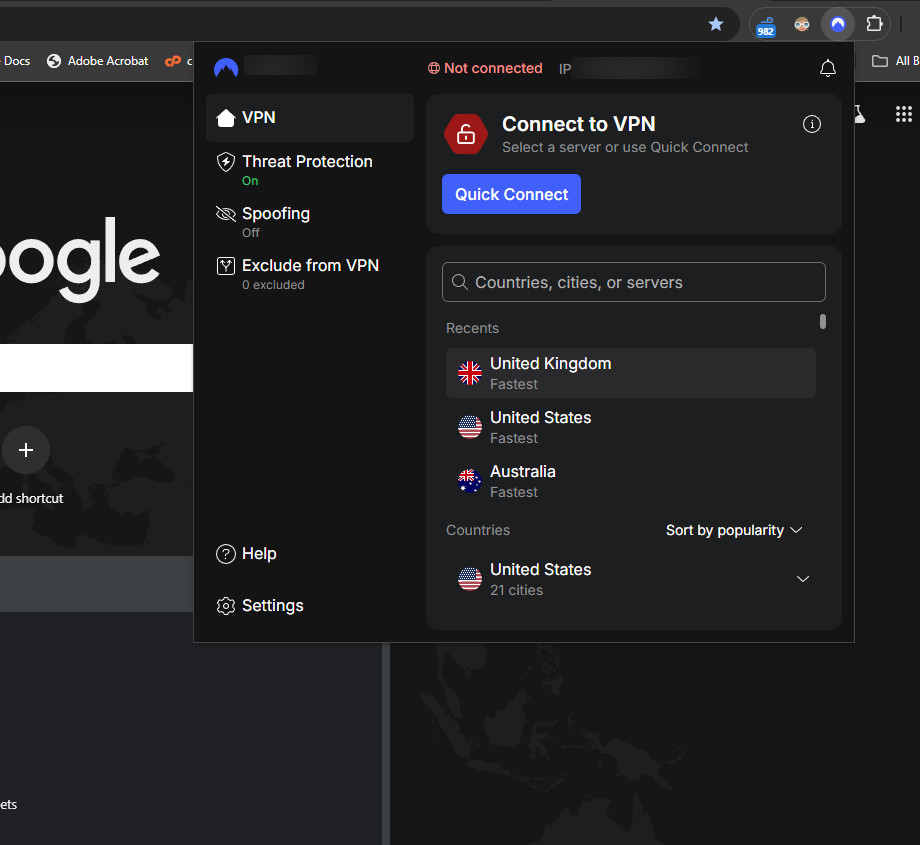
- Reopen Twitter and try changing your username again.
4. Try on Desktop
If the username change keeps failing on your phone, switching to the desktop version often works better. The desktop site connects more directly to X’s servers, avoiding mobile app bugs, cached data, or UI limitations that can cause the error.
- Visit twitter.com in your browser and sign in to your account.
- Go to Settings & Privacy > Your Account > Account Information > Username.
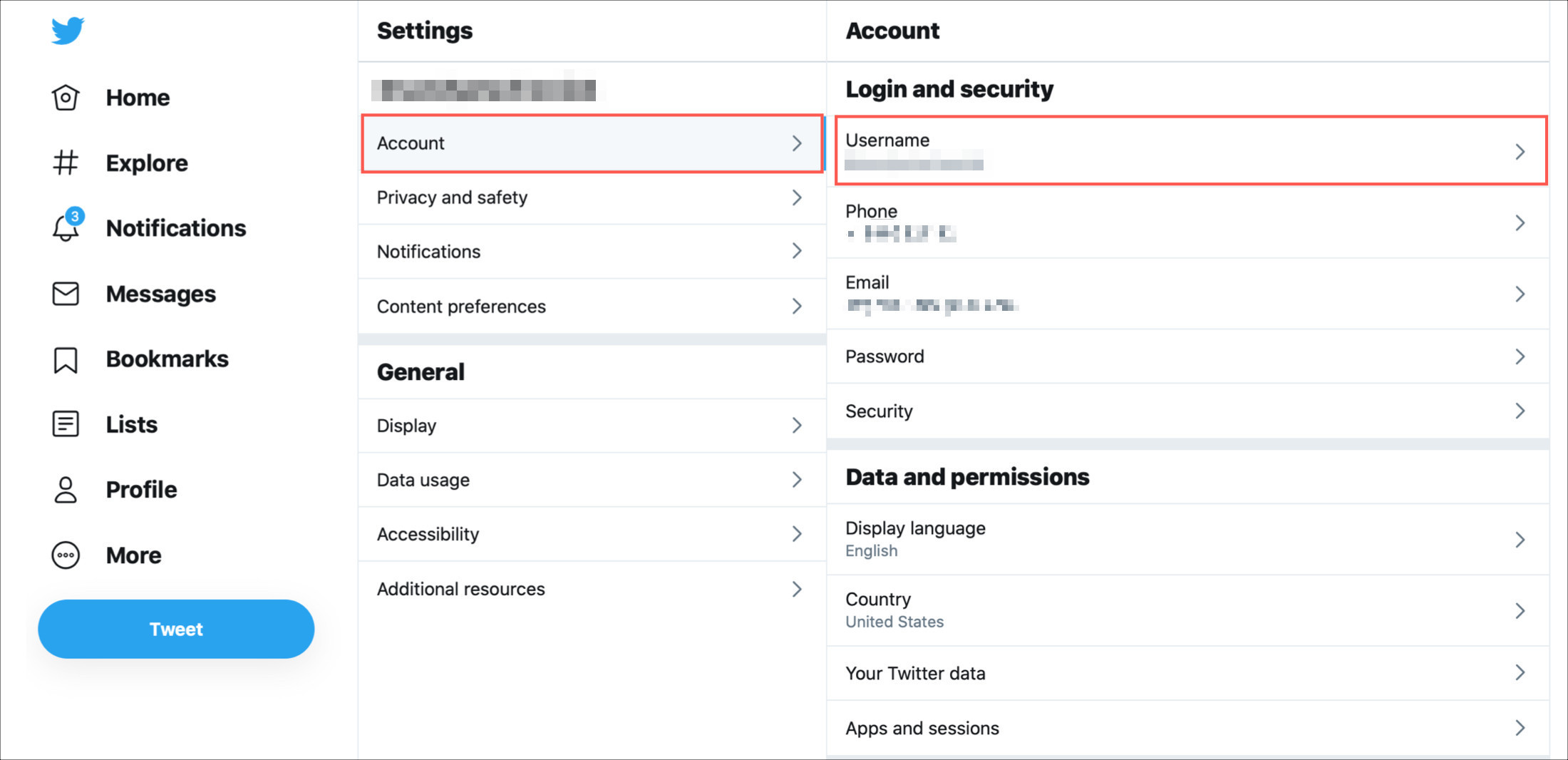
- Enter a new username and click Save.