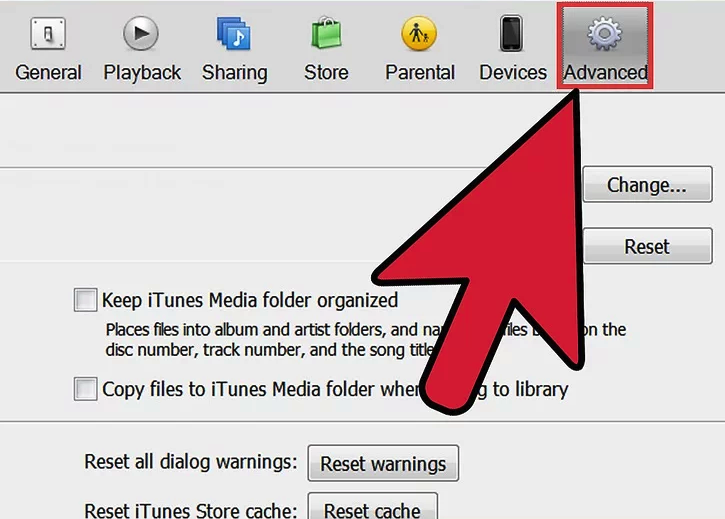
How to Import Audiobooks Into iTunes is a simple process that allows you to consolidate your collection, whether you are using digital MP3 files or physical CDs. By adding these titles to your library, you can easily sync and access your favorite stories from any device while on the go.
For those using the latest Apple software, you can manage your collection through the Apple Books app or the Apple Music app on Mac, which have replaced the traditional iTunes interface for media management.
Method1 Importing Audiobooks from Your Computer
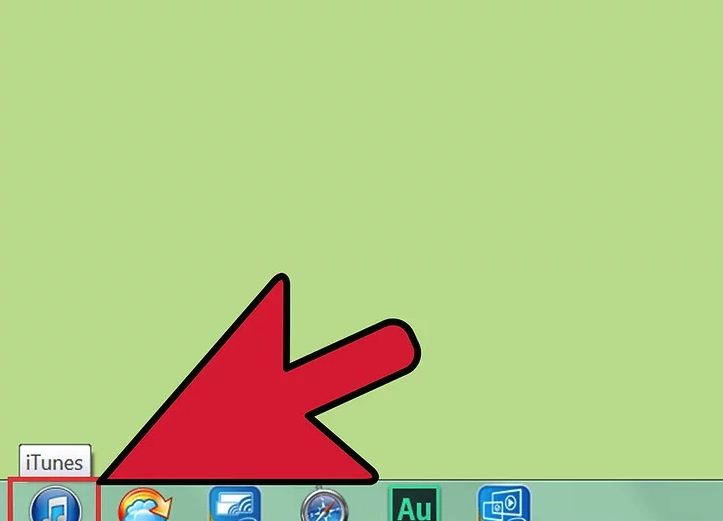
Step 1: Launch iTunes
Open iTunes by double-clicking its icon on your desktop or selecting it from your Applications or Start menu.
If you don’t have iTunes installed yet, download it from Apple’s official website:
👉 https://www.apple.com/itunes/download/

Step 2: Open the Library
Click Library at the top of the iTunes window.
This section displays all digital content stored in your iTunes account, including music, audiobooks, podcasts, and videos.
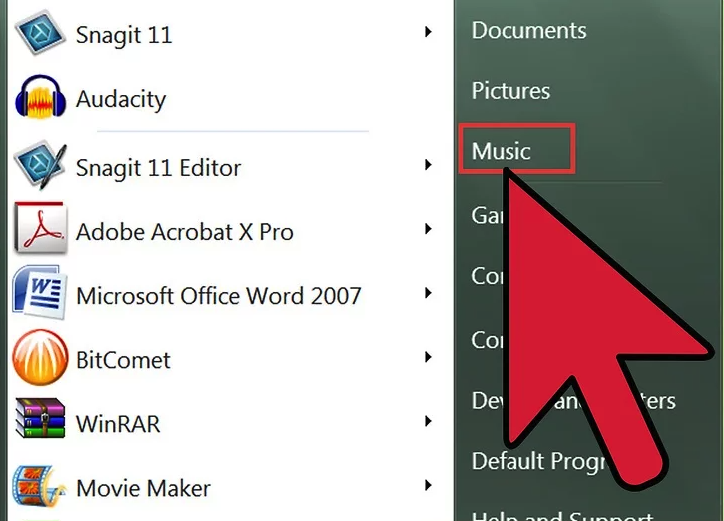
Step 3: Locate the Audiobook Files
Using your computer’s file manager:
- Windows: File Explorer
- macOS: Finder
Navigate to the folder where the audiobook files you want to import are stored.
Common audiobook file formats include .m4b, .mp3, and .aac.
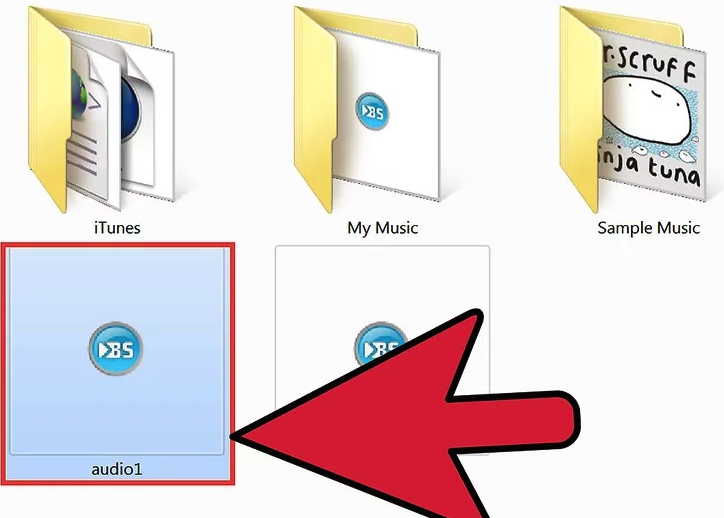
Step 4: Select the Audiobooks
Select the audiobook files you want to add:
- To select one file, click it once to highlight it.
- To select multiple files, hold:
Ctrl(Windows) orCmd(Mac)
while clicking each audiobook file.
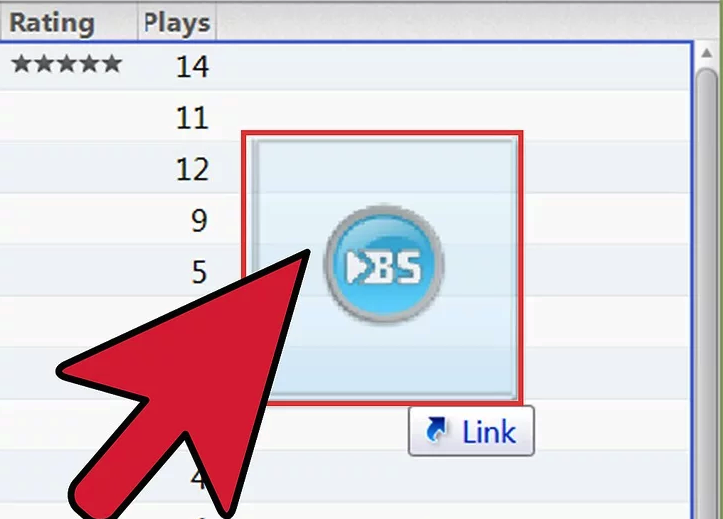
Step 5: Import the Audiobooks into iTunes
Drag and drop the selected audiobook files into the iTunes window.
iTunes will automatically import the files and add them to your library, where you can organize, edit metadata, and play them as audiobooks.
Additional Tips
- If an audiobook appears under Music instead of Audiobooks, right-click the file, choose Get Info, and change the media type to Audiobook.
- For better chapter support, use the
.m4baudiobook format. - On newer versions of macOS, iTunes is replaced by Apple Music, but the import process remains similar.
References
- Apple Support – iTunes User Guide
👉 https://support.apple.com/itunes - Apple Official iTunes Download Page
👉 https://www.apple.com/itunes/download/ - Apple Developer Documentation – Audio File Formats
👉 https://developer.apple.com/
Method2 Importing Audiobooks from a CD
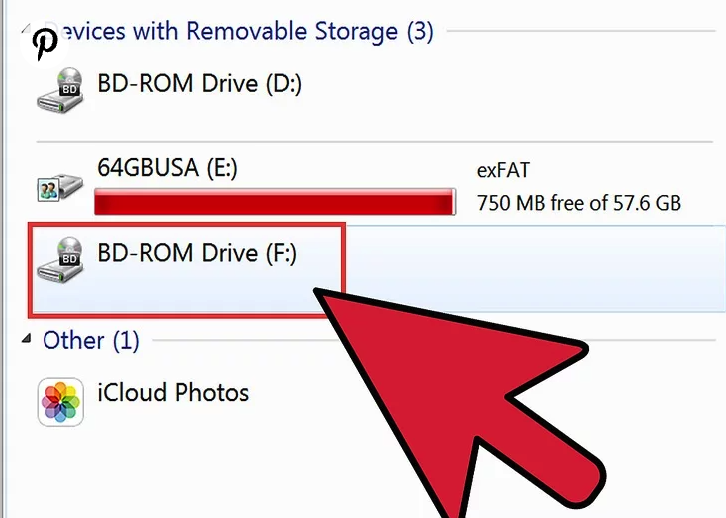
Step 1: Insert the CD into Your Computer
Insert the audiobook CD into your computer’s CD/DVD drive.
- On laptops, the drive is usually located on the side.
- On desktop computers, the drive is typically found on the front of the CPU tower.
Wait a few seconds for the system to recognize the disc.
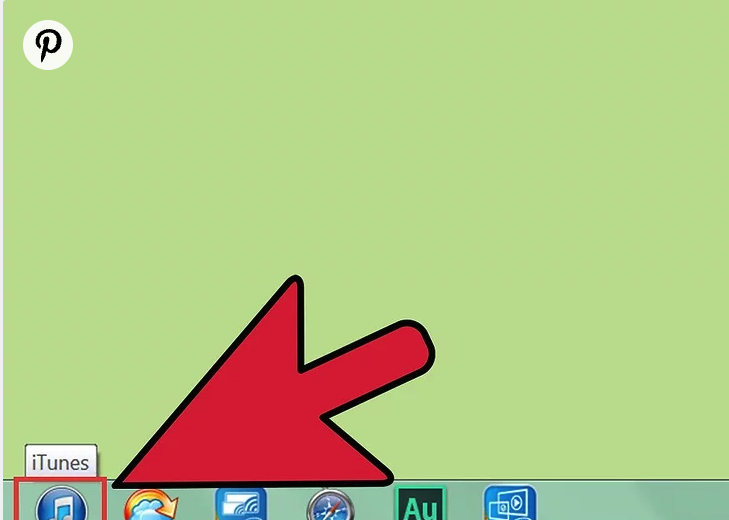
Step 2: Launch iTunes
Open iTunes by double-clicking its icon on your desktop or selecting it from your applications list.
If iTunes is not installed on your computer, download it from Apple’s official website:
👉 https://www.apple.com/itunes/download/
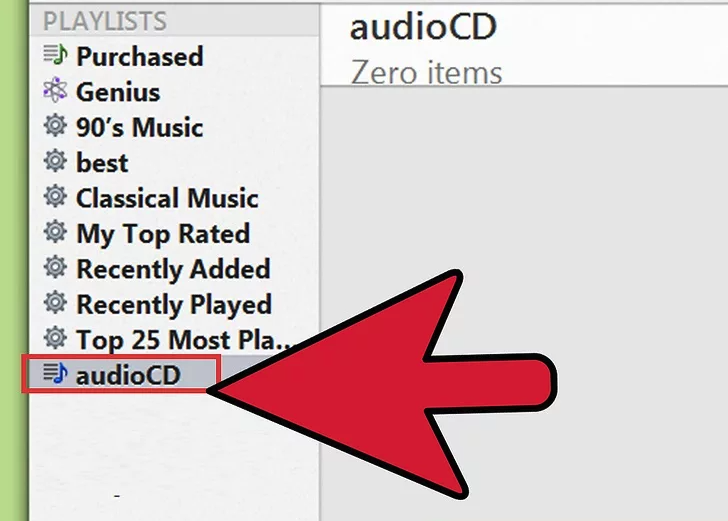
Step 3: Click “Audio CD” in iTunes
Once the CD is detected, click Audio CD in the left navigation panel of iTunes.
This will display all tracks available on the inserted disc.
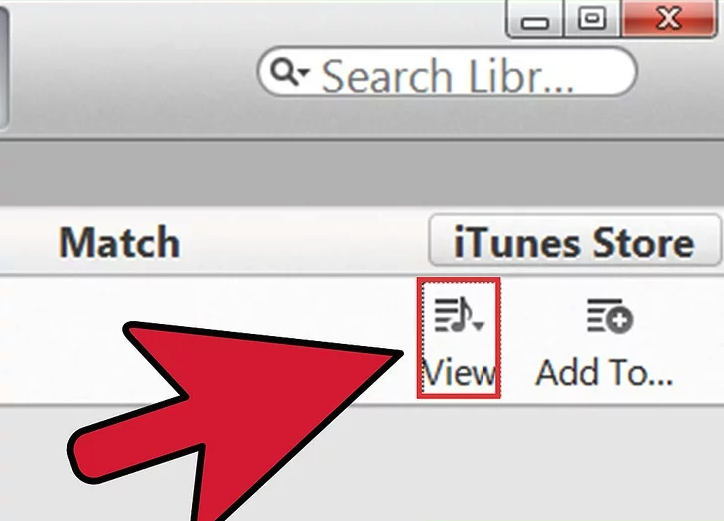
Step 4: Close Any Pop-Up Windows
If any pop-up windows appear (such as playback or CD information prompts), simply close them.
You do not need to play the tracks in order to import them.
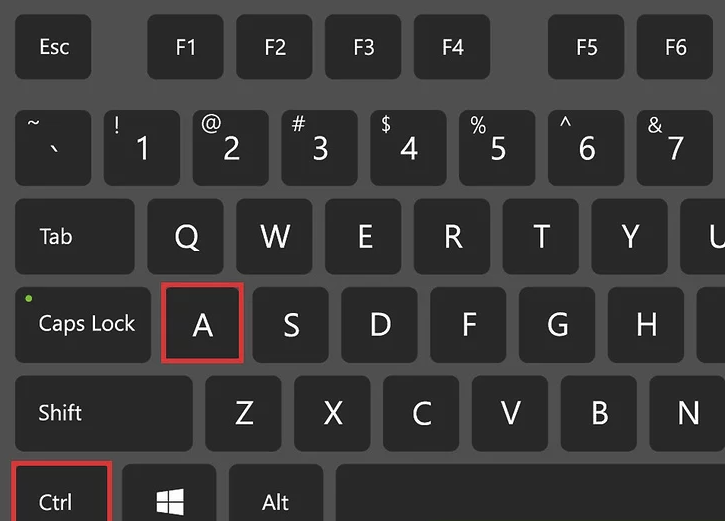
Step 5: Select All CD Tracks
Select all tracks on the CD by pressing:
- Ctrl + A (Windows)
- Cmd + A (Mac)
All tracks should now be highlighted.
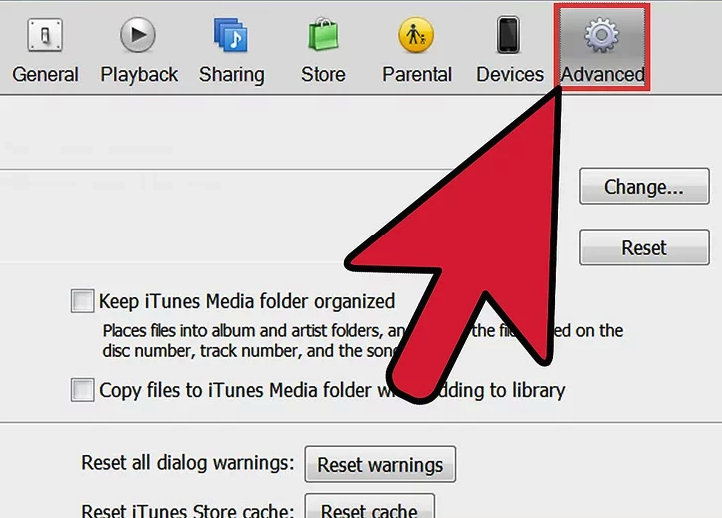
Step 6: Open the Advanced Menu
Click Advanced in the menu bar at the top of the iTunes window.
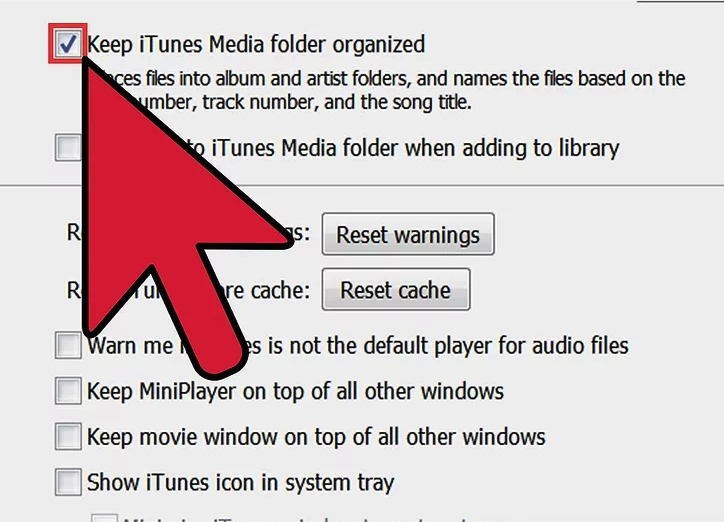
Step 7: Join the CD Tracks
From the Advanced menu, select Join CD Tracks.
This step combines all selected tracks into a single audiobook file, which is ideal for spoken-word content.
Step 8: Submit CD Track Information
Click Advanced again, then select Submit CD Track Names.
An information window will appear. Fill in the relevant details, such as:
- Artist Name
- Composer
- Album
- Genre
Under Genre, make sure to select Audiobooks, then click OK.
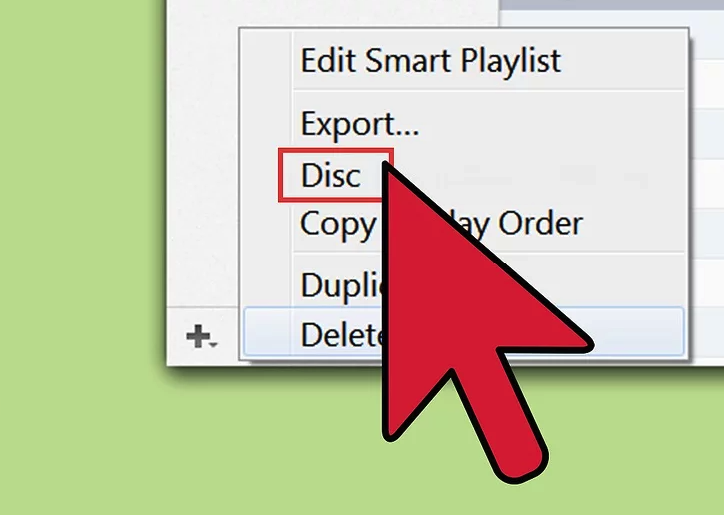
Step 9: Import the CD
Click Import CD in the lower-right corner of the iTunes window.
iTunes will begin importing the audiobook and adding it to your library.
Once complete, the audiobook will appear under the Audiobooks category.
Additional Tips
- For best results, ensure all tracks are joined before importing.
- Audiobooks imported as a single track are easier to resume and navigate.
- On newer versions of macOS, iTunes has been replaced by Apple Music, but CD importing follows a similar workflow.
References
- Apple Support – iTunes User Guide
👉 https://support.apple.com/itunes - Apple Official iTunes Download Page
👉 https://www.apple.com/itunes/download/ - Apple Developer Documentation – Audio Formats
👉 https://developer.apple.com/