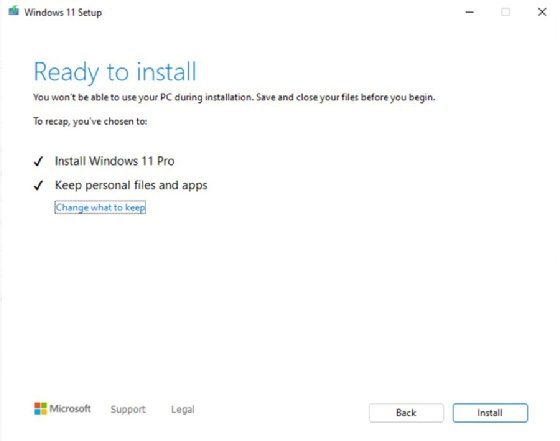
Creating a custom Windows 11 image allows IT administrators to deploy pre-configured desktops quickly and consistently across an organization. While there are multiple ways to acquire or install Windows—such as purchasing pre-installed PCs, manually installing base images, or running Windows virtually—Hyper-V provides a robust platform for enterprise desktop deployment.
Using Hyper-V, administrators can create reference images that include preinstalled applications, device drivers, user preferences, and configuration settings. Once deployed, these images allow end users to start working immediately on fully configured Windows desktops.
Why Use Hyper-V for Custom Windows 11 Images
- Efficient deployment of fully configured desktops
- Centralized management for IT administrators
- Automation-ready for large-scale enterprise environments
- Supports checkpoints for easy rollback during customization
Understanding how Hyper-V handles custom images helps desktop administrators deploy, maintain, and update Windows desktops efficiently.
Step-by-Step Guide to Creating a Custom Windows 11 Image
1. Set Up a Technician Computer
Start by preparing a Technician Computer with:
- Windows Assessment and Deployment Kit (ADK)
- Windows Preinstallation Environment (WinPE)
Install Windows 11 on a reference PC that closely matches target user hardware, then apply customizations such as:
- Device drivers
- Applications
- System settings
2. Prepare Windows Environment with Sysprep
Use the Microsoft System Preparation Tool (Sysprep) to generalize the system before capturing the image.
Best practice:
- Create a Hyper-V checkpoint before running Sysprep
- Create another checkpoint immediately after Sysprep finishes
3. Capture the Image Using DISM
Boot the VM from the Windows installation media, not the VHD. Use Diskpart to assign drive letters if needed:
diskpart
list vol
select volume 3
assign letter=D
exit
Capture the image with the Deployment Image Servicing and Management (DISM) tool:
DISM /capture-image /imagefile:E:\install.wim /capturedir:D:\ /ScratchDir:E:\Scratch /name:"Win11_Custom" /description:"Custom Windows 11 Image" /compress:maximum /checkintegrity /verify /bootable
/imagefile:E:\install.wim– Path to save the captured image/capturedir:D:\– Windows drive letter during capture/scratchdir:E:\Scratch– Temporary working folder/name&/description– Name and description of the image
Once complete, save the image to a network share or external media.
4. Create Bootable Custom ISO
- Mount the original Windows ISO used to create the VM
- Copy all content to a folder (e.g.,
ISO_Files) - Replace the original
install.wimwith your custominstall.wim - Include your
autounattend.xmlfor automated deployment
Create the ISO using OSCDIMG:
oscdimg.exe -m -o -u2 -udfver102 -bootdata:2#p0,e,bd:\iso_files\boot\etfsboot.com#pEF,e,bd:\iso_files\efi\microsoft\boot\efisys.bin d:\iso_files "d:\Win11PRO.iso"
⚠️ Warning: Booting from this media will wipe the target drive. Always test on non-critical systems first.
5. Deploy Your Custom Windows 11 Image
Once the ISO is created, you can:
- Deploy it to new Hyper-V VMs
- Copy to physical machines via USB or DVD
- Use for automated installation with pre-configured user accounts and software
For new hardware, verify the disk number assigned by your ISO and adjust the autounattend.xml file accordingly to prevent accidental data loss.
Hyper-V Best Practices for Custom Windows Images
- Always create checkpoints before and after major changes
- Test your ISO on multiple hardware configurations
- Maintain separate storage for install.wim and answer files
- Document all customizations for reproducibility
References & Official Documentation
- Hyper-V Overview – Microsoft Docs
- DISM (Deployment Image Servicing and Management) – Microsoft Docs
- Sysprep – Microsoft Docs
- OSCDIMG – Microsoft Docs
- Windows Assessment and Deployment Kit (ADK)