For busy Microsoft administrators, managing security configurations effectively can be overwhelming. A small misconfiguration can escalate into significant security vulnerabilities, jeopardizing the entire organization’s infrastructure or exposing it to compliance failures. To mitigate this, Microsoft offers the Microsoft Security Compliance Toolkit, a comprehensive solution to identify security gaps, fix vulnerabilities, and maintain a consistent security posture.
What is the Microsoft Security Compliance Toolkit?
The Microsoft Security Compliance Toolkit is a set of tools designed to help administrators assess and align their Group Policy Objects (GPOs) with Microsoft’s recommended security baselines. With this toolkit, admins can easily compare their current settings with best practices, identify discrepancies, and apply more secure configurations when necessary. The toolkit is compatible with both local GPOs and Active Directory.
Key features include:
- Policy Comparison: Compare existing GPO settings with Microsoft’s recommended baselines.
- Security Descriptor Reset: A tool to reset security descriptors for almost any object.
- Backup and Restore: Admins can edit GPOs, store them in backup format, and apply them via domain controllers or in test environments to troubleshoot and verify security configurations.
How to Use the Microsoft Security Compliance Toolkit
Admins can download the toolkit from Microsoft’s official Security Compliance Toolkit page. The download includes several zip files corresponding to security baseline packages for Windows Server, Windows 10, Windows 11, Microsoft 365 Apps for Enterprise, and Microsoft Edge. Additional files include:
- Policy Analyzer: A tool that compares GPOs and checks against system security policies.
- Local Group Policy Object Utility: For managing local GPO settings.
- Set Object Security Application: A utility for managing object-level security settings.
Key Tool: Policy Analyzer
The Policy Analyzer is a powerful tool that compares different sets of GPOs (such as the security baselines from Microsoft) with a system’s local security policies and registry settings. It helps detect inconsistencies, redundant settings, and tracks changes by comparing baseline configurations at different points in time.
To use the Policy Analyzer:
- Create a Policy Rules File: Start by exporting the organization’s current policy settings.
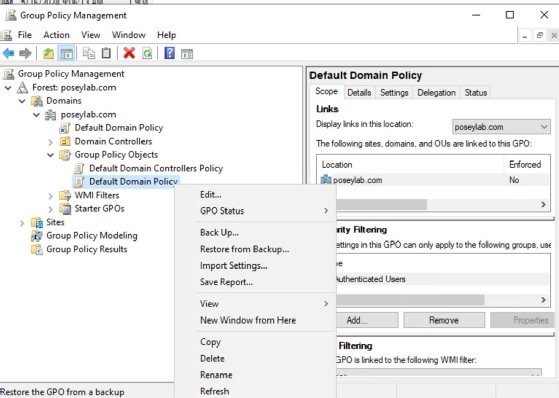
- Backup Current GPO: Open the Group Policy Management Console (GPMC), right-click on a GPO, and select Back Up from the shortcut menu.
This process allows admins to quickly identify security misconfigurations and ensure the organization’s settings align with Microsoft’s best practices.
Benefits of the Security Compliance Toolkit
- Streamlined Compliance: Stay compliant with industry standards like CIS and NIST.
- Enhanced Security: Improve Windows security with pre-configured, best-practice baselines.
- Efficient Management: Automate and simplify the management of Group Policy Objects across various Windows environments.
For more information, download the toolkit directly from Microsoft’s Security Compliance Toolkit page.
Conclusion
The Microsoft Security Compliance Toolkit is an essential resource for administrators seeking to maintain a secure and compliant Windows environment. By leveraging these tools, administrators can ensure their systems are aligned with security best practices, minimize risks, and stay ahead of potential vulnerabilities.
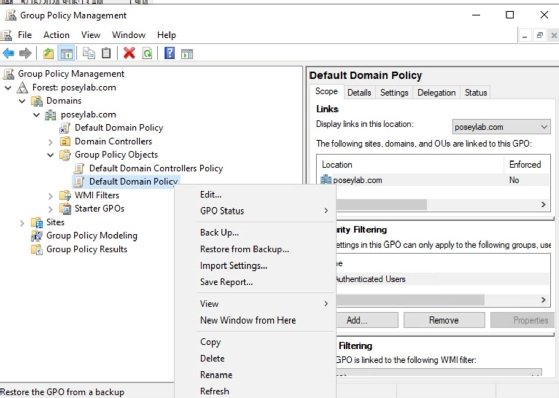
Right-click on a GPO and select the backup command from the menu.
Next, launch the Policy Analyzer. Click the Add button and select the Add files from GPO(s) command from the File menu. Select the folder that corresponds to the GPO backup and load it by clicking the Import button.
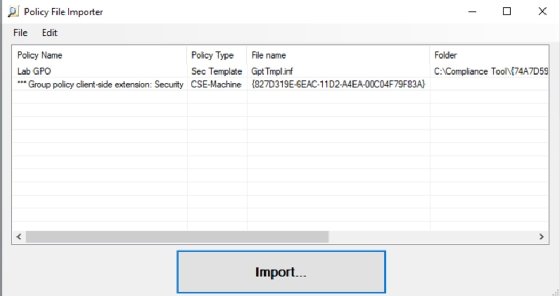
Import the policy file from the Policy Analyzer.
Next, enter a name when prompted for a policy rules file and click Save. The main Policy Analyzer screen will open. The console contains buttons used to view or compare the policy settings and to compare the policy settings to the effective state.
Microsoft recently packaged the GPO2PolicyRules utility with Policy Analyzer. GPO2PolicyRules automatically converts GPO backups to Policy Analyzer rules files.
Use it by running GPO2PolicyRules.exe from a command prompt, followed by the desired GPO backup and the output file that you want to create.
Local Group Policy Object tool
The Local Group Policy Object (LGPO) tool runs from the command line and manages the system’s local security policy. This tool offers several capabilities related to local policy settings:
- Import and apply settings. The tool works with several sources, including registry policy files, security templates, auditing backups and LGPO text files.
- Policy backup. Export local policy to a GPO backup for safekeeping and deployment to other systems.
- Verification. Run a check of Group Policy settings before widespread deployment.
- Non-domain system management. Automate configuration and deployment across multiple systems not connected to the domain.
The LGPO tool’s syntax is relatively complex, as it supports numerous parameters. You can view the full syntax by running LGPO.exe from a command prompt.
For example, to create a backup of a local GPO, enter this command:
LGPO.exe /b <path> /n <group policy name>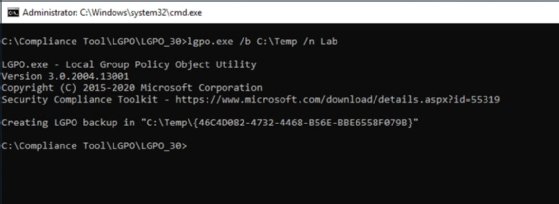
The LGPO utility creates a backup of a local GPO to a folder on the machine.
Set Object Security tool
Set Object Security applies a security descriptor to files, folders, SMB shares or nearly any other type of object. A common use is to restore the default security descriptor to a system’s root folder.
To use the tool, run the SetObjectSecurity.exe command, followed by several parameters:
- ObjType. The type of object to secure, such as FILE, KEY, eventlog, printer, share or kobject, to name a few. Object types are case sensitive.
- ObjName. The name of the object to secure, such as a file, folder or registry key.
- SDDL. The SDDL is the security descriptor to apply, written in Security Descriptor Definition Language. Use a tool such as AccessChk to get the SDDL from an object.
The following example shows the Set Object Security tool executing a set of policy rules that were converted from a GPO backup:
SetObjectSecurity.exe FILE C:\ "O:S-1-5-80-956008885-3418522649-1831038044-1853292631-2271478464D:PAI(A;OICI;FA;;;BA)(A;OICI;FA;;;SY)(A;OICI;0x1200a9;;;BU)(A;OICIIO;SDGXGWGR;;;AU)(A;;LC;;;AU)S:P(ML;OINPIO;NW;;;HI)"How to apply security baselines to Windows Server
Before executing any changes to a production system, admins should follow best practices and test deploying the security baselines to Windows Server systems in a nonproduction environment.
To use Microsoft’s recommended security configuration baselines for Windows Server versions before Windows Server 2025, download the Microsoft Security Compliance Toolkit files used to configure Group Policy settings. The files contain documentation, Group Policy reports, GPOs for different setups, PowerShell scripts to assist with the deployment, and GPO templates in ADMX and ADML formats.
To start, open GPMC and open Group Policy Management.
Next, right-click on Group Policy Objects in the domain and forest to create the GPO, then rename the GPO to give it a descriptive name based on the baseline name.
Right-click on the GPO and choose Import Settings, then select the baseline GPO for the server role from the folder with the extracted security baseline files.
Link the GPO to the domain or the organizational unit, then enable the GPO settings. Run the following command to force the Group Policy update on the test system:
gpupdate /forceCheck the event log for any errors related to Group Policy.
New security baseline method arrives with Windows Server 2025
With Windows Server 2025, Microsoft introduced the OSConfig platform to apply a desired state configuration for security baselines.
Microsoft integrated security baselines into the OS via the OSConfig PowerShell module, which removes the need to download files. The native PowerShell tooling updates the settings with one command rather than requiring multiple tools. OSConfig also features an automated method to keep systems within compliance with a drift control mechanism.
Brien Posey is a former 22-time Microsoft MVP and a commercial astronaut candidate. In his more than 30 years in IT, he has served as a lead network engineer for the U.S. Department of Defense and a network administrator for some of the largest insurance companies in America.
