How to Back Up Your Computer
A backup is not a copy on the same desk. It is a second copy that survives spilled coffee, a stolen bag, and ransomware — and the only way to know it works is to restore a file before you need to.
Co-authored by:
Howly editors

Steps
3 methods · 15 steps · 15 illustrationsPart 1 of 3
Decide What a Backup Has to Do
 Step 1 / 15
Step 1 of 15: Name the three things you cannot lose 1Name the three things you cannot lose
Before you buy anything, open your computer and list the folders that would end your week if they vanished: family photos, tax documents, the novel, the password database. For most people it is three to five folders, not the whole drive.
Write the list down and note the size of each folder. That number decides the drive you need and the plan you can actually keep, and it stops you from backing up a terabyte of downloaded films while missing the one folder that matters.
Tip: Check your photo library and your documents folder first. Those two are usually 80 percent of what people regret losing.
 Step 2 / 15
Step 2 of 15: Follow the 3-2-1 rule 2Follow the 3-2-1 rule
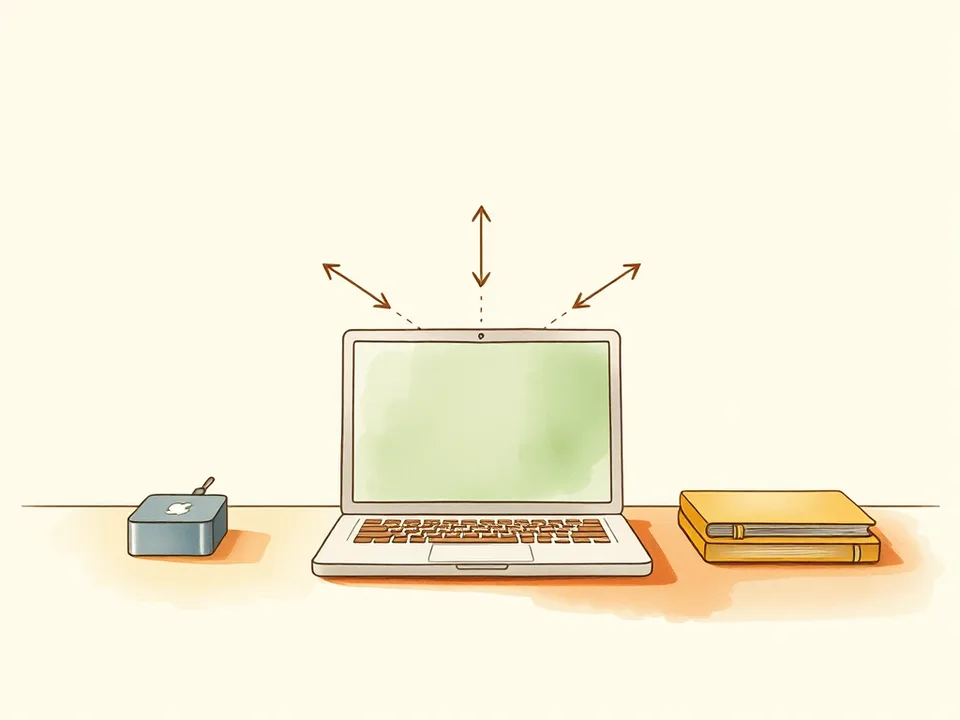
Three copies of the data, on two different kinds of media, with one copy kept somewhere else. Your laptop is copy one. An external drive on the shelf is copy two. A cloud backup or a drive at a relative's house is copy three.
The rule exists because every single storage method fails in a different way. A drive dies, a house floods, a cloud account gets locked. Three copies in three places is the smallest arrangement that survives more than one of those at once.
Tip: Two drives stacked in the same bag count as one copy when the bag is stolen. Distance is part of the backup.
 Step 3 / 15
Step 3 of 15: Choose between a full and an incremental backup 3Choose between a full and an incremental backup
A full backup copies everything every time: simple, slow, and hungry for space. An incremental backup copies what changed since the last run, which is fast enough to do hourly and is what most backup software does by default.
Pick incremental for daily work and keep one full backup, made monthly, that you never overwrite. The full copy is what saves you when a file is corrupted months ago and the incremental chain has faithfully copied the damage.
Tip: Versioned backups — several historical copies of each file — cost more space and repay it the first time you overwrite a document by accident.
 Step 4 / 15
Step 4 of 15: Buy an external drive at least twice the size of your data 4Buy an external drive at least twice the size of your data
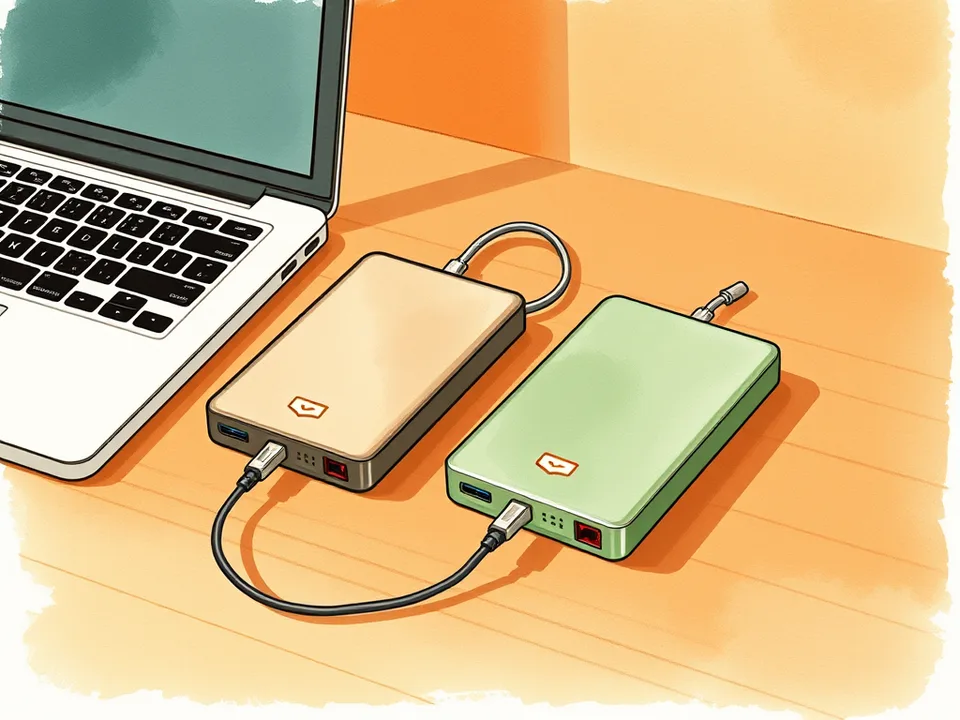
Add up the folders on your list, then double it. The extra room covers versions, growth, and the fact that drives slow down and fill up. A 2 TB drive for 500 GB of data is a comfortable place to start, and portable drives of that size are inexpensive.
Buy two identical drives rather than one large one: one stays at home, one goes offsite and swaps with it every month. Identical drives mean identical cables and no surprises when one fails.
Tip: Avoid the cheapest no-name enclosure. A drive that disconnects mid-write is worse than no backup at all.
 Step 5 / 15
Step 5 of 15: Decide what to leave out 5Decide what to leave out
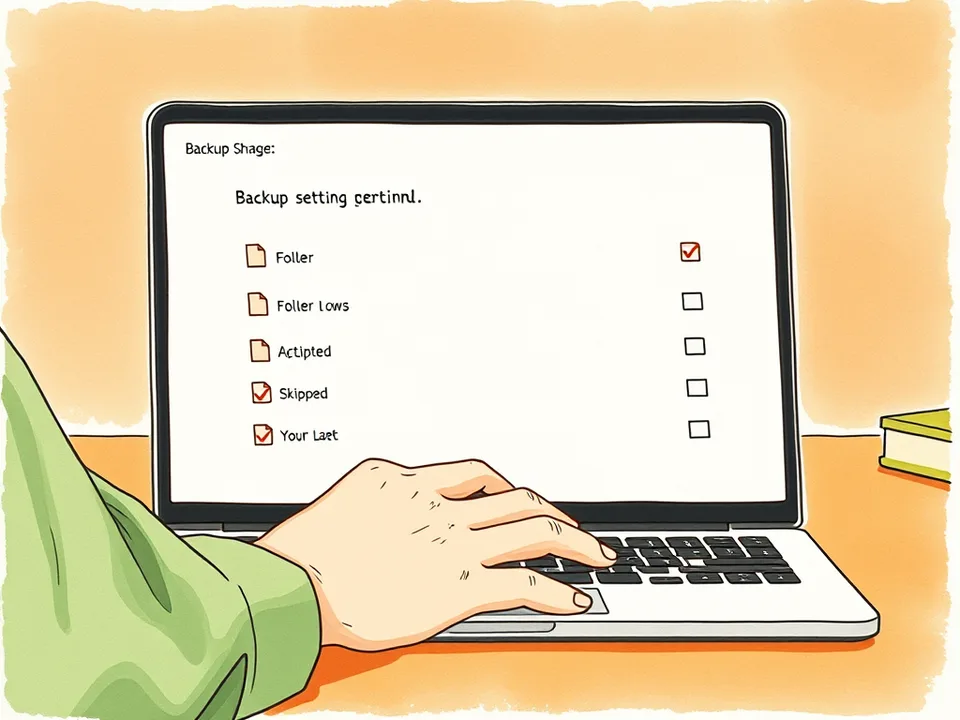
Exclude the things you can re-download or rebuild: streaming caches, application installers, virtual machine images, and the trash. They inflate the backup, slow every run, and add nothing you would miss.
Do not exclude your email archive, your browser profile, or your password manager database. Those look like application data and are usually the files people most need after a crash.
Tip: Most backup tools let you exclude folders by name. Set that up once and the nightly run gets much shorter.
Part 2 of 3
Set Up the First Backup
 Step 6 / 15
Step 6 of 15: Plug the drive into a port on the computer itself 6Plug the drive into a port on the computer itself
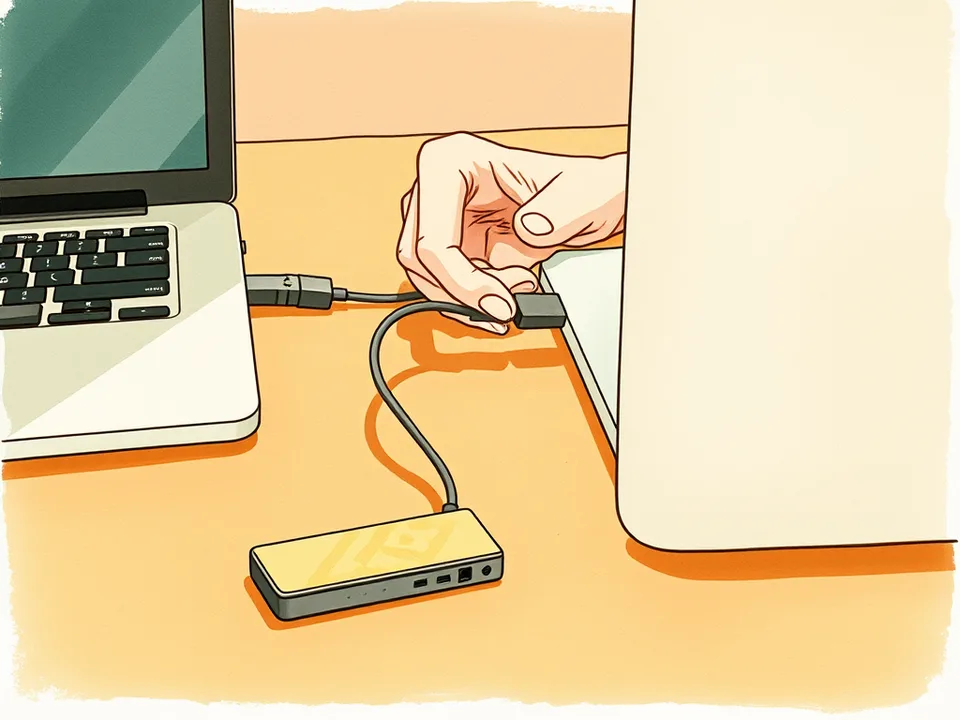
Use a port on the laptop or desktop, not an unpowered hub. A hub that loses power for a second during a write can leave the backup corrupted, and cheap hubs drop connections when a second device wakes up.
If you must use a hub, use a powered one, and check after the first run that the drive stayed connected for the whole job.
Tip: Laptops on battery sometimes cut power to external drives to save energy. Plug the laptop in for the first full backup.
 Step 7 / 15
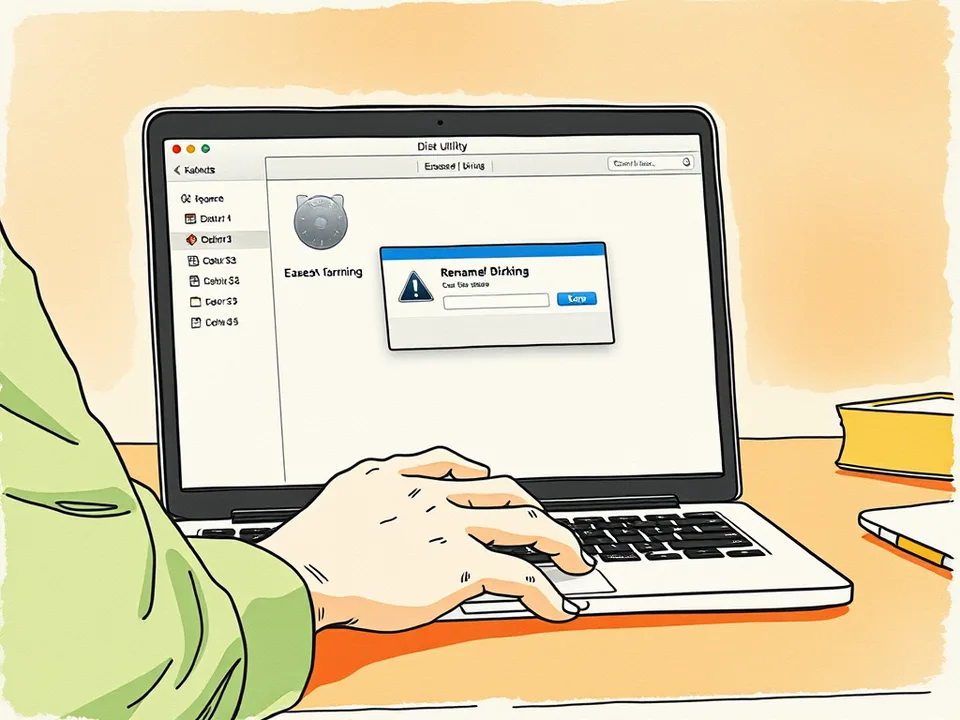
Step 7 of 15: Format the drive for your system 7Format the drive for your system
A new drive often arrives formatted for Windows. On a Mac, open Disk Utility and erase it as APFS or Mac OS Extended; on Windows, use NTFS. If you share the drive between both systems, exFAT works but loses some speed and journaling.
Formatting erases the drive, so check the name twice before you click. Name it something obvious like Backup-2026 so you never confuse it with a working drive.
Tip: Do not format the drive that already holds your only copy of anything. Check the label and the capacity before erasing.
 Step 8 / 15
Step 8 of 15: Turn on the backup tool that came with the system 8Turn on the backup tool that came with the system
Windows has File History and Backup; macOS has Time Machine. Both are free, both are already installed, and both are good enough for most people. Open the settings, choose the external drive, and switch the schedule on.
Add your important folders explicitly if the tool does not include them by default — on Windows, File History only covers a few locations until you add more.
Tip: Third-party tools are worth it when you need image-level recovery or cloud plus local in one job. Start with the built-in one.
 Step 9 / 15
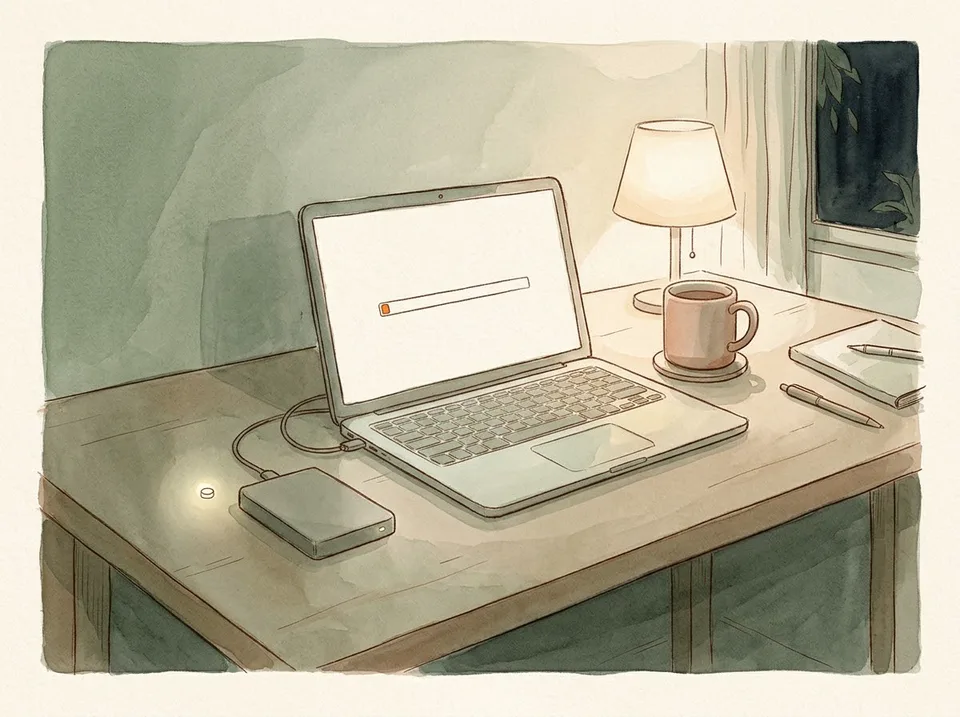
Step 9 of 15: Run the first full backup overnight 9Run the first full backup overnight
The first run copies everything and can take hours. Start it in the evening, plug the laptop in, and let it work. Do not close the lid or let the machine sleep — most tools pause and resume, but a paused first backup is the one people forget to finish.
In the morning, check that the tool reports a completed backup and a sensible size. If it says 12 GB when your photos alone are 200 GB, it skipped something.
Tip: A first backup that finishes suspiciously fast is usually an exclusion mistake. Check the size before you trust it.
 Step 10 / 15
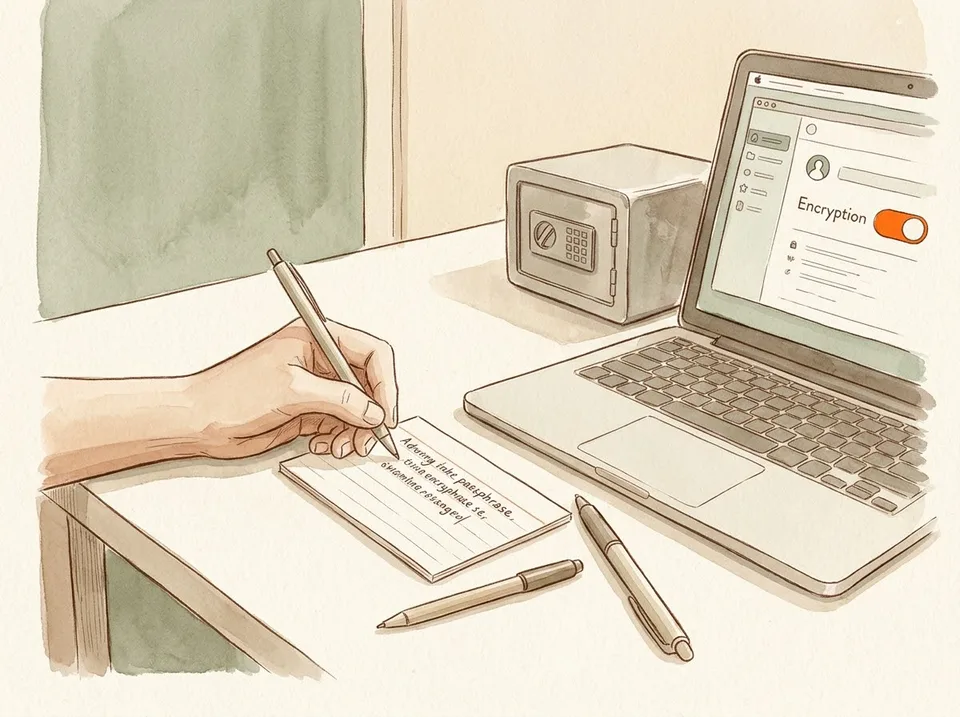
Step 10 of 15: Encrypt the drive and store the password somewhere else 10Encrypt the drive and store the password somewhere else
An unencrypted backup drive is a plain copy of your life that fits in a coat pocket. Turn on encryption in the backup tool — FileVault-style encryption on a Mac, BitLocker or the tool's own option on Windows — and set a long passphrase.
Store that passphrase in your password manager and on a written copy in a drawer. If you lose it, the backup is unreadable forever; there is no recovery.
Tip: Write the passphrase down before you enable encryption, not after. This is the one password you cannot reset.
Part 3 of 3
Test It, Automate It, Keep It Alive
 Step 11 / 15
Step 11 of 15: Restore one file to prove the backup works 11Restore one file to prove the backup works
Open the backup tool, browse to an old version of a document, and restore it to your desktop. Open the file and confirm it is intact. This takes two minutes and is the only real evidence that you have a backup rather than a folder of bytes.
Do this again after any change to the drive, the cable, or the software. A backup you have never restored from is a hope, not a plan.
Tip: Restore a photo too, not just a text file. Photos are where compression and corruption show up.
 Step 12 / 15
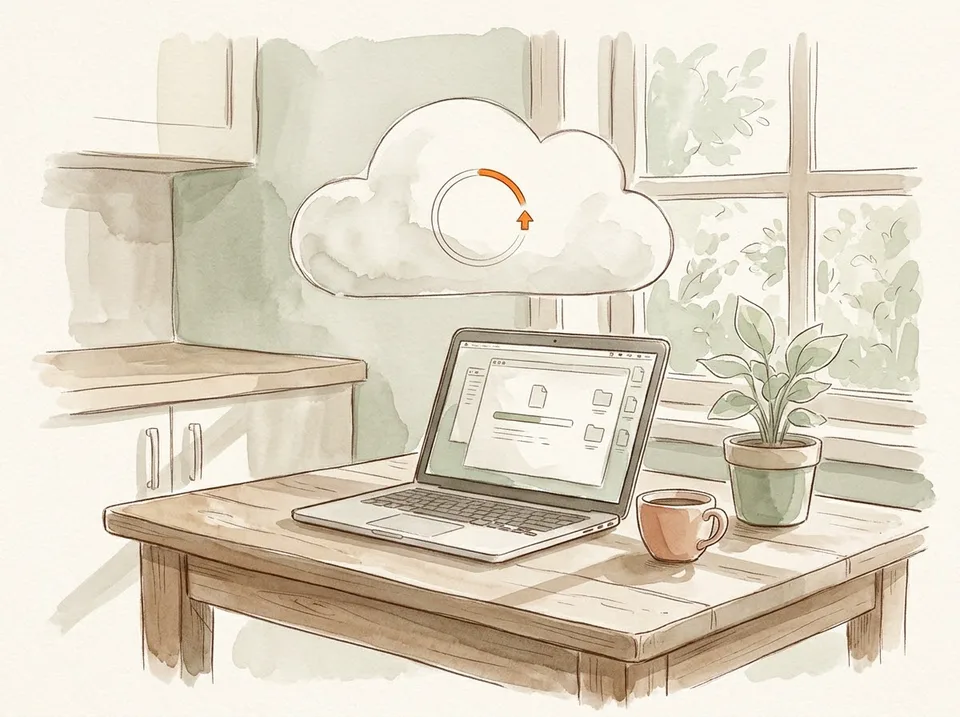
Step 12 of 15: Add an offsite copy in the cloud 12Add an offsite copy in the cloud
Pick a cloud service with versioning — Backblaze, iCloud, Google Drive, or OneDrive all work — and point it at the same folders. The first upload will take days on a home connection; let it run in the background and check the progress weekly.
Cloud storage is copy three. It is not a substitute for the local drive, because restoring a terabyte over a home connection is slow, and it is not a substitute for versioning, because sync tools delete the cloud copy when you delete the local one.
Tip: Choose a service that keeps deleted files for at least 30 days. Sync is not backup if a mistake propagates instantly.
 Step 13 / 15
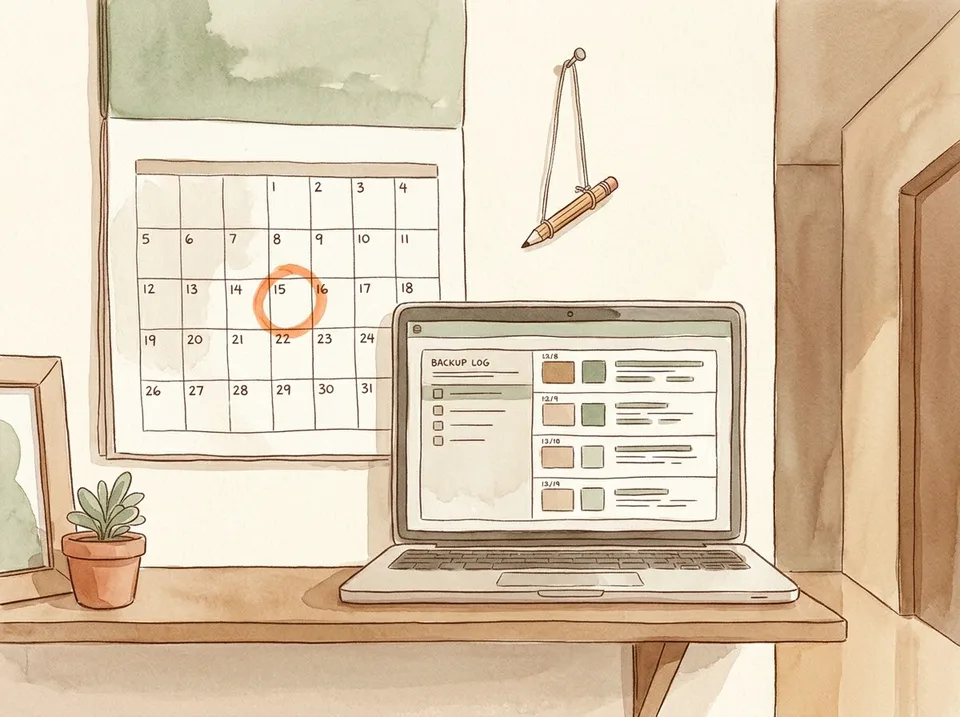
Step 13 of 15: Set a schedule and read the log once a month 13Set a schedule and read the log once a month
Daily incremental backups, hourly if you work on documents all day, and a monthly full copy. Put a recurring reminder in your calendar to open the backup tool and look at the last-run date.
A red icon in the menu bar is the most common way people discover their backup stopped six weeks ago. Reading the log once a month is the whole maintenance routine.
Tip: If the backup has not run in a week, fix it before you do anything else on the computer. Silent failure is the default.
 Step 14 / 15
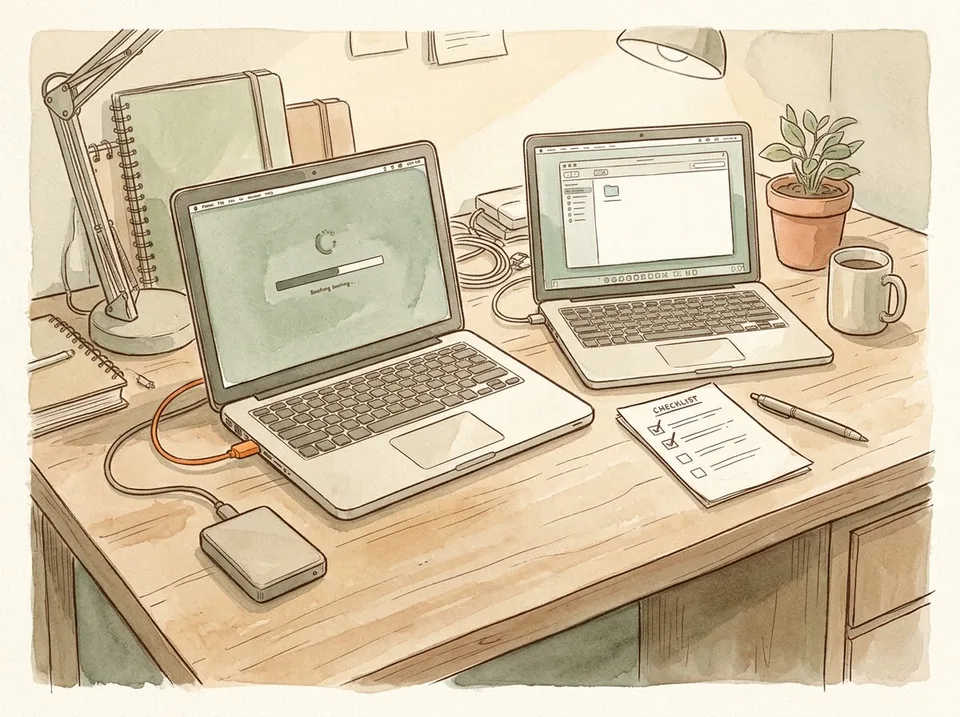
Step 14 of 15: Keep a bootable clone or a written recovery plan 14Keep a bootable clone or a written recovery plan
A clone is an exact copy of the whole drive that you can start the computer from. It is not a substitute for versioned backups, but it turns a dead laptop into a twenty-minute swap instead of a two-day rebuild.
If you skip the clone, write the recovery plan instead: which drive, which cable, which account, which password, and what you install first. Keep it somewhere you can read it when the computer will not start.
Tip: A clone made monthly is enough for most people. Test-boot from it once so you know it works.
 Step 15 / 15
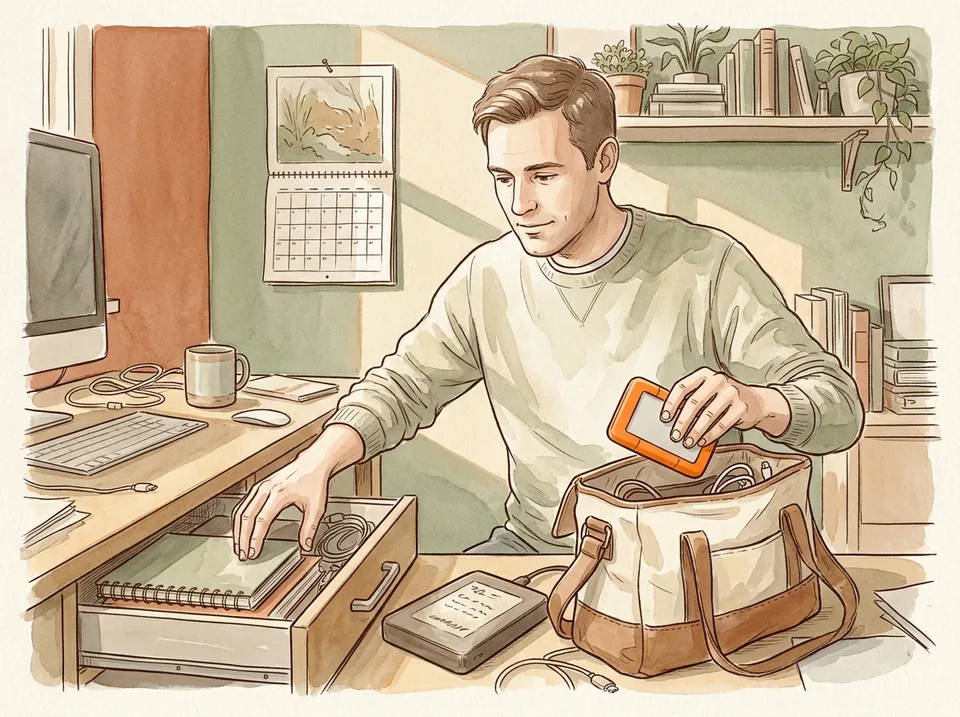
Step 15 of 15: Replace the drive every three to five years and swap the offsite copy 15Replace the drive every three to five years and swap the offsite copy
Drives are consumables. Watch the health reading in your backup tool if it shows one, and replace the drive at the first sign of reallocated sectors, odd noises, or a run that suddenly takes twice as long.
On the first of every month, take the home drive to the office or a relative's house and bring the other one back. That swap is what makes the offsite copy real rather than theoretical.
Tip: Keep the old drive as an archive rather than erasing it. A retired backup is a free extra copy of last year.
Tips
- Label both drives with a marker and the month they were last refreshed. Unlabelled drives become mystery objects.
- Back up before you travel, not after. Theft is the failure mode a local drive cannot survive.
- Keep a copy of your password manager's recovery kit outside the house. It is the key to everything else.
Warnings
- Never rely on a single drive, however new it is. All drives fail, and most fail without warning.
- Do not store the only copy of your encryption passphrase on the computer being backed up.
Community Q&A
Is cloud storage enough on its own?+
No. It is one copy, it depends on your internet connection to restore, and sync tools copy deletions. Use it as the offsite leg of 3-2-1, not as the whole plan.
How long does the first backup take?+
Roughly an hour per 100 GB over USB 3, longer over Wi-Fi. Start it overnight, keep the machine plugged in, and check the reported size in the morning.
Do I need to back up the operating system?+
Not for most people — you can reinstall it. Back up your data and your application settings, and keep a note of the software you rely on.
References
Related on Howly
About This Article
Last updated Oct 29, 2026. 51,781 readers have viewed this guide.
0% of readers found this article helpful.
No votes yet
Click a star to add your vote
No reader stories yet. Be the first to share how this guide worked out for you.