How to Back Up Your Photos
Protect a photo library with independent copies, an off-site option, secure access, and a restore test before deleting anything. A photo library can disappear through a failed device, an accidental deletion, or a compromised account. Synchronization helps keep devices consistent but is not always an independent backup. Use these 15 steps to locate originals, make separate copies, test a restore, and maintain a routine suited to your devices.
Co-authored by:
Howly editors

Steps
3 methods · 15 steps · 15 illustrationsPart 1 of 3
Find and Organize Your Photos
 Step 1 / 15
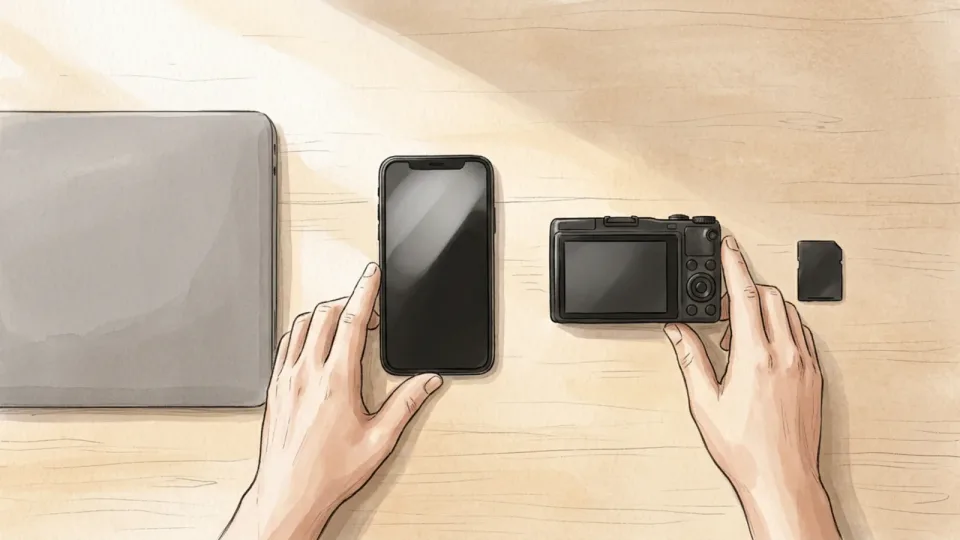
Step 1 of 15: List where your photos live 1List where your photos live
Make a list of phones, computers, cameras, memory cards, external drives, and online libraries that contain photos or videos. Include old accounts and shared collections you are allowed to copy. Mark which source has the full-resolution original and which contains edited or exported versions; they may not be stored in the same place.
Tip: Start with the collection you would miss most if a device failed today.
 Step 2 / 15
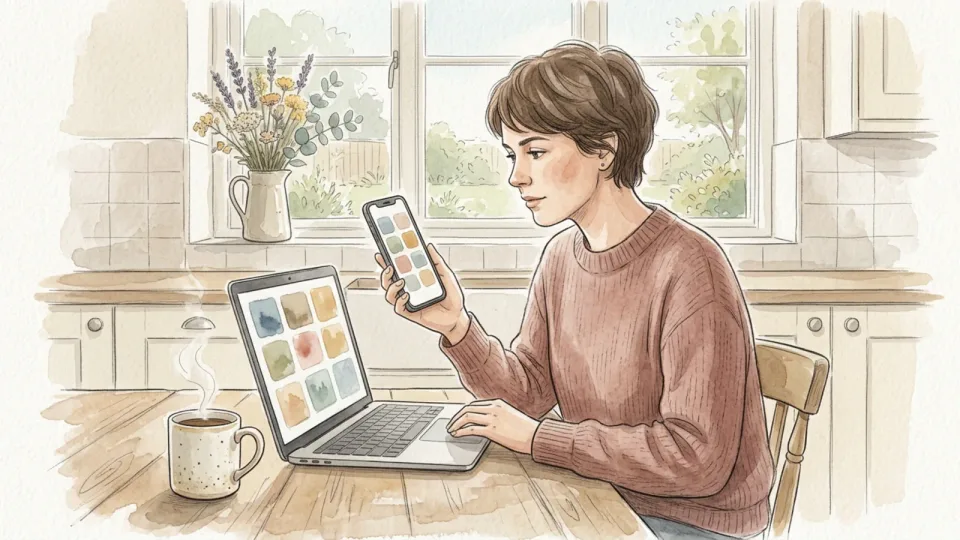
Step 2 of 15: Understand sync versus backup 2Understand sync versus backup
A synced photo library keeps changes aligned across devices; it does not necessarily preserve an independent copy after deletion. For example, Apple says a photo deleted from iCloud Photos on one device is deleted on other devices using the same account. Check your own service's deletion and retention rules before treating sync as your only protection.
Tip: Keep at least one separate copy that is not automatically deleted when the main library changes.
 Step 3 / 15
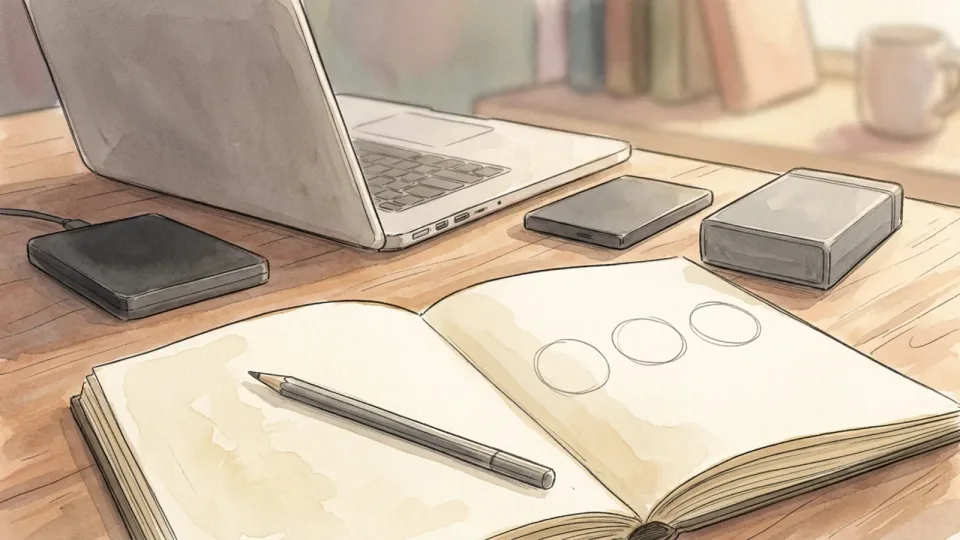
Step 3 of 15: Choose a multi-copy plan 3Choose a multi-copy plan
Aim for several independent copies, including one away from home. The 3-2-1 guideline describes three copies on two types of media, with one off-site. For a household, that might include the working library, a separate external-drive backup, and an independent off-site backup; choose storage types and isolation that suit your risks and budget.
Tip: A second folder on the same physical drive is not an independent backup.
 Step 4 / 15
Step 4 of 15: Check available storage 4Check available storage
Estimate the total size of your photos, videos, and any original files you want to preserve. Leave room for new pictures and older versions, not just today's library. Check the free space on each destination and any cloud storage limits before starting a large transfer. Plan for video files, which may be much larger than still images.
Tip: If a destination fills up, check for a failed or paused backup before relying on it.
 Step 5 / 15
Step 5 of 15: Gather files without deleting originals 5Gather files without deleting originals
Use your device's supported import or export method to collect the files you want to protect. Keep the source photos in place while you copy, and wait for transfers to finish before disconnecting anything. If a service stores optimized previews on the device, use its instructions to obtain full-resolution originals where needed.
Tip: Import or copy first; do not choose a move or delete option while the backup is unverified.
Part 2 of 3
Create Independent Copies
 Step 6 / 15
Step 6 of 15: Preserve originals and useful edits 6Preserve originals and useful edits
Decide whether to keep original files, edited versions, videos, and accompanying metadata. Export options differ by app: an edited JPEG may not include the original file or all album organization. Use the app's documented export method and check a small sample before exporting a large library. Record any formats or sidecar files needed to reopen edits.
Tip: Keep the original file as well as a shareable export when both matter to you.
 Step 7 / 15
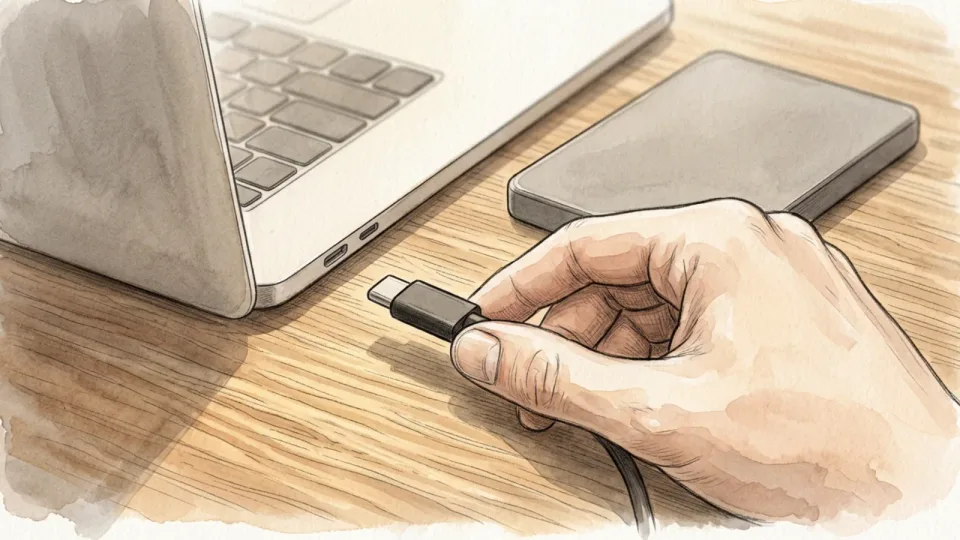
Step 7 of 15: Copy to a separate local drive 7Copy to a separate local drive
Connect a reliable external drive and use your chosen backup tool or copy method to make an independent local copy. Organize it in a recognizable folder and wait for the operation to complete. Do not treat a drive that holds the only copy as a backup; the working library and backup must both remain available.
Tip: Label the physical drive so it is not mistaken for an empty spare.
 Step 8 / 15
Step 8 of 15: Check that the copy is complete 8Check that the copy is complete
Compare the source and destination folder sizes or file counts where your software makes that possible. Open a selection of photos and play several videos directly from the backup, including older and recent items. If your software provides an integrity check, use it as well. Investigate errors or unusually small files before moving on.
Tip: Check representative files from different dates and devices, not just the first photo in a folder.
 Step 9 / 15
Step 9 of 15: Protect private photos and the key 9Protect private photos and the key
Consider encrypting a removable backup, especially if it might be lost or kept away from home. Use a strong password and store the recovery key separately in a safe, accessible place. Follow the encryption tool's instructions and make sure a trusted person can locate recovery information if needed. Losing the only key can make the backup unusable.
Tip: Do not store the only recovery key on the same drive it unlocks.
 Step 10 / 15
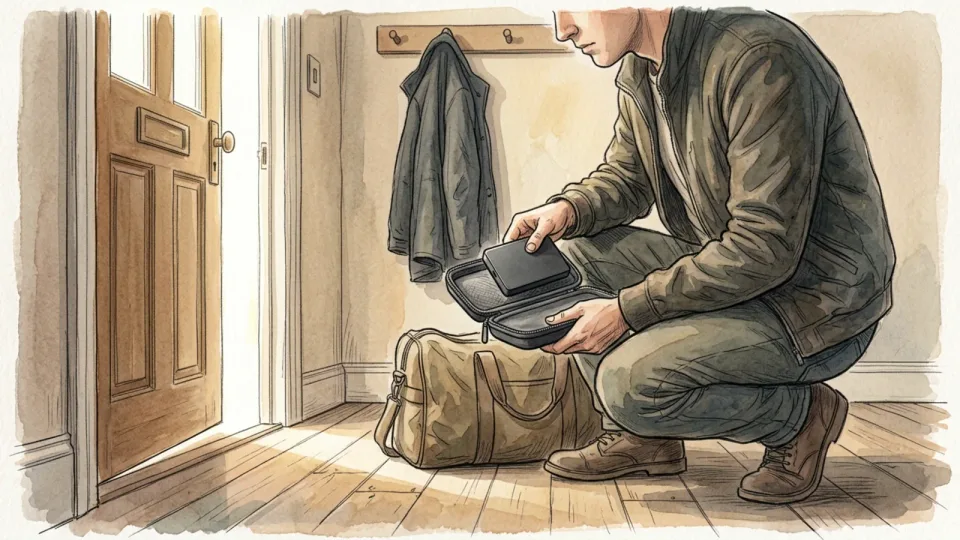
Step 10 of 15: Keep another copy away from home 10Keep another copy away from home
Create an independent off-site copy, such as a versioned online backup or an encrypted drive stored in a secure second location. Check that the service or device actually contains your intended files and retains them under its terms. An off-site copy helps if a fire, theft, or other event affects your home and local drive.
Tip: Review privacy controls before putting sensitive family pictures into a shared account.
Part 3 of 3
Keep the Backup Usable
 Step 11 / 15
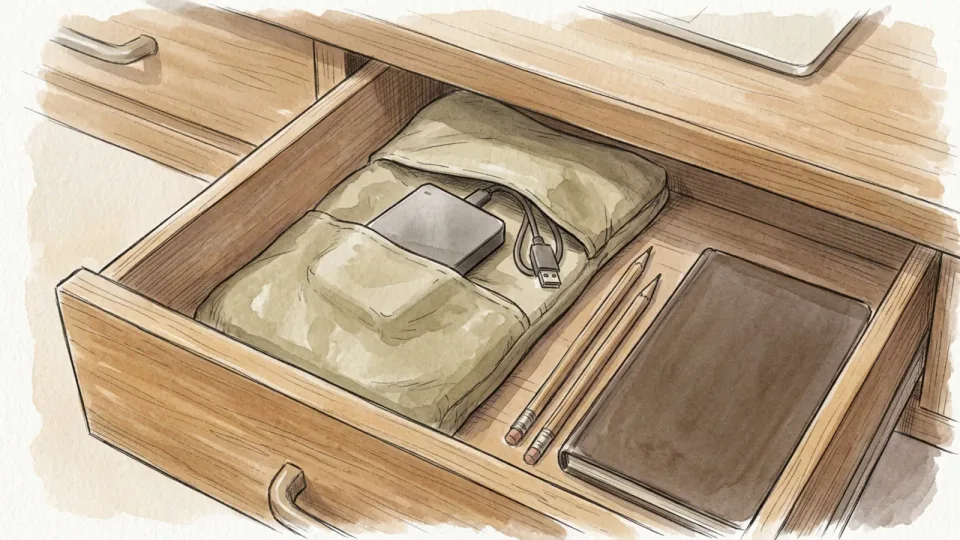
Step 11 of 15: Preserve a disconnected or versioned copy 11Preserve a disconnected or versioned copy
Keep a backup disconnected when it is not being updated, or use a service that retains previous versions and deleted files for a period you understand. An always-connected copy can be affected by accidental changes or malicious software. Check retention limits and reconnect the offline drive regularly enough to keep the copy useful.
Tip: Isolation and version history serve different purposes; use both if practical.
 Step 12 / 15
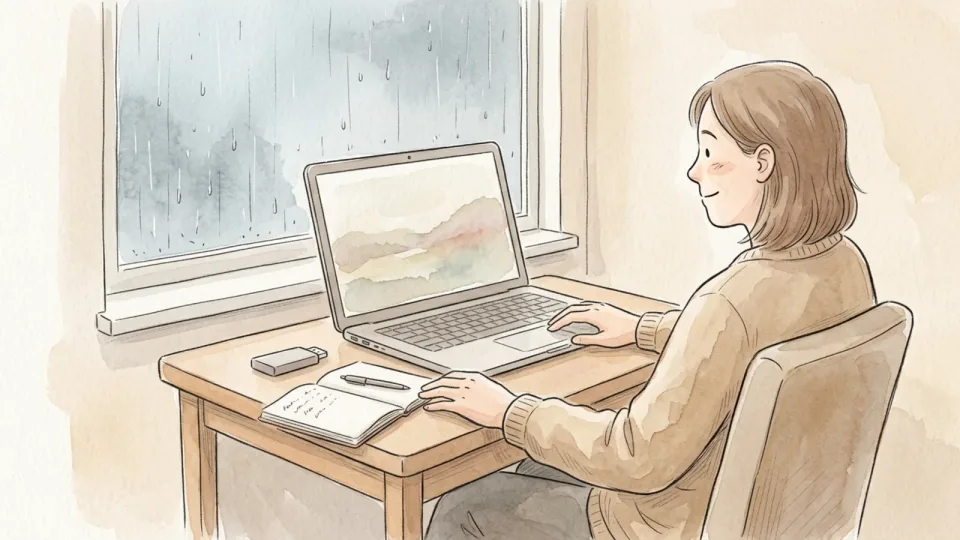
Step 12 of 15: Practice restoring a few files 12Practice restoring a few files
Restore a small selection to a different folder or device rather than overwriting your working library. Open the recovered images and videos, and check that their quality and important dates are as expected. A successful transfer is not proof that recovery will work; a test makes the process familiar before an emergency.
Tip: Try restoring an older file and a recent video as well as a favorite photo.
 Step 13 / 15
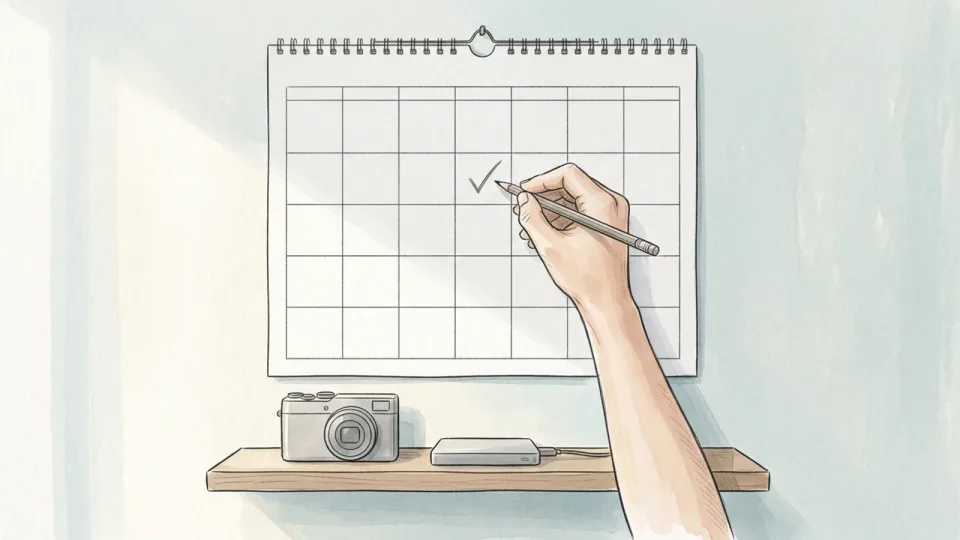
Step 13 of 15: Schedule regular updates 13Schedule regular updates
Choose how often to back up based on how many new photos you would be willing to lose. Set an automatic schedule where supported and a reminder to update any disconnected drive. After travel or a major event, make an extra copy rather than waiting for the next routine backup. Check that each run actually completes.
Tip: A simple recurring reminder is better than a complicated plan you stop using.
 Step 14 / 15
Step 14 of 15: Secure account access 14Secure account access
Use a unique password and multi-factor authentication where your backup service supports it. Save recovery methods separately and review who can access shared albums or backup folders. Keep devices and backup software updated. If a backup contains someone else's private photos, agree on appropriate access and storage before copying them.
Tip: Test that account recovery works before you depend on a single phone for access.
 Step 15 / 15
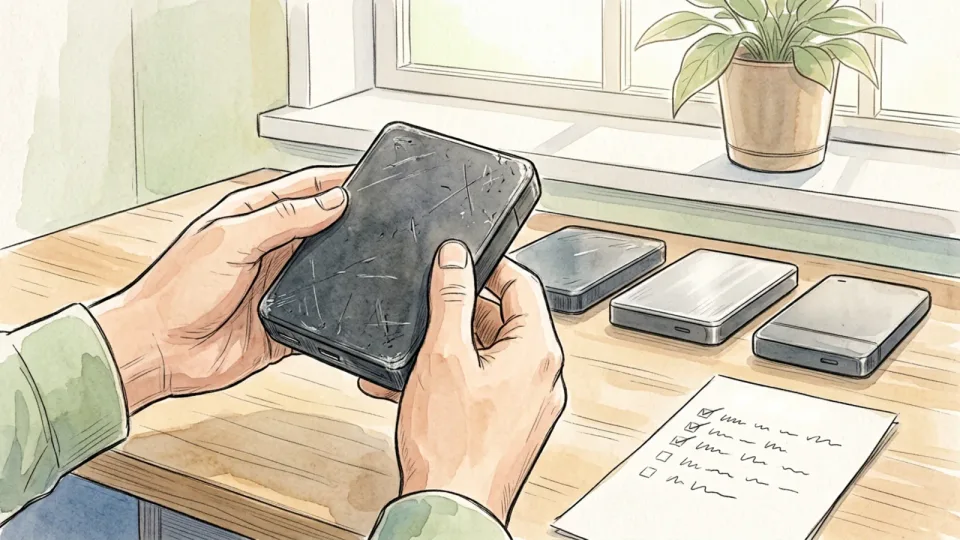
Step 15 of 15: Review the plan and replace failing media 15Review the plan and replace failing media
Periodically check backup dates, storage space, alerts, and whether you can still open older formats. Test restoration again after changing computers or backup services. Replace a drive that reports errors or behaves unreliably, but keep existing copies until the replacement is complete and tested. Update your notes so you know where each copy lives.
Tip: Recheck your backups after a major system change or an unexpected transfer failure.
Tips
- Keep the working library and backup copies on separate storage.
- Check the backup after large trips or family events.
- Keep recovery keys separate from encrypted drives.
- Test a restore after changing devices or backup services.
Warnings
- Do not delete the original collection until independent copies are complete and tested.
- A synchronized deletion may remove files from other devices; check your service’s rules.
- An encrypted backup cannot be recovered without its password or recovery key.
- Protect private and shared pictures according to the people’s permissions and your local rules.
Community Q&A
Is cloud photo sync a backup?+
Sync keeps changes consistent across devices, but deletion may also sync. Some services have recovery or version-history features; check their terms and retention limits. Keep an independent backup rather than assuming every synced copy is protected from the same deletion.
How many copies should I keep?+
The 3-2-1 guideline suggests three copies on two media types, with one off-site. Adapt the details to your household and budget, but avoid counting two folders on the same drive as independent copies. An offline or versioned copy adds protection against certain changes.
Can I delete pictures from my phone after copying them?+
First confirm the files exist at full quality in multiple independent locations and test restoring them. If your phone uses a synchronized library, deletion may also affect other devices. Review the service’s rules before removing anything.
How do I check that a backup works?+
Restore several files to another folder or device, then open photos and play videos. Include older files, recent files, and different formats. Check file counts or integrity reports where available and investigate failures.
How often should I update my backup?+
Choose a frequency based on how much new work you could tolerate losing. Automatic backups can help, but check their completion status. Update disconnected or off-site copies on a regular schedule and after important events.
References
- Apple Support. Transfer Photos and Videos from Your iPhone or iPad to Your Mac or PC. Published September 14, 2026.
- Apple Support. Delete Photos on Your iPhone or iPad. Published March 31, 2026.
- Cybersecurity and Infrastructure Security Agency. Understanding Ransomware Threat Actors: LockBit. June 14, 2023.
- National Institute of Standards and Technology. NIST Releases Tips and Tactics for Dealing With Ransomware. Updated February 3, 2025.
Related on Howly
About This Article
Last updated Oct 29, 2026. 3 readers have viewed this guide.
0% of readers found this article helpful.
No votes yet
Click a star to add your vote
No reader stories yet. Be the first to share how this guide worked out for you.